For businesses
Your company's page, kept up to date for you
Connect your store, videos, events and jobs once. Your Business Crew stays current on its own, and you add community when you're ready.
For vendors and companies that build for, sell to or serve public safety.
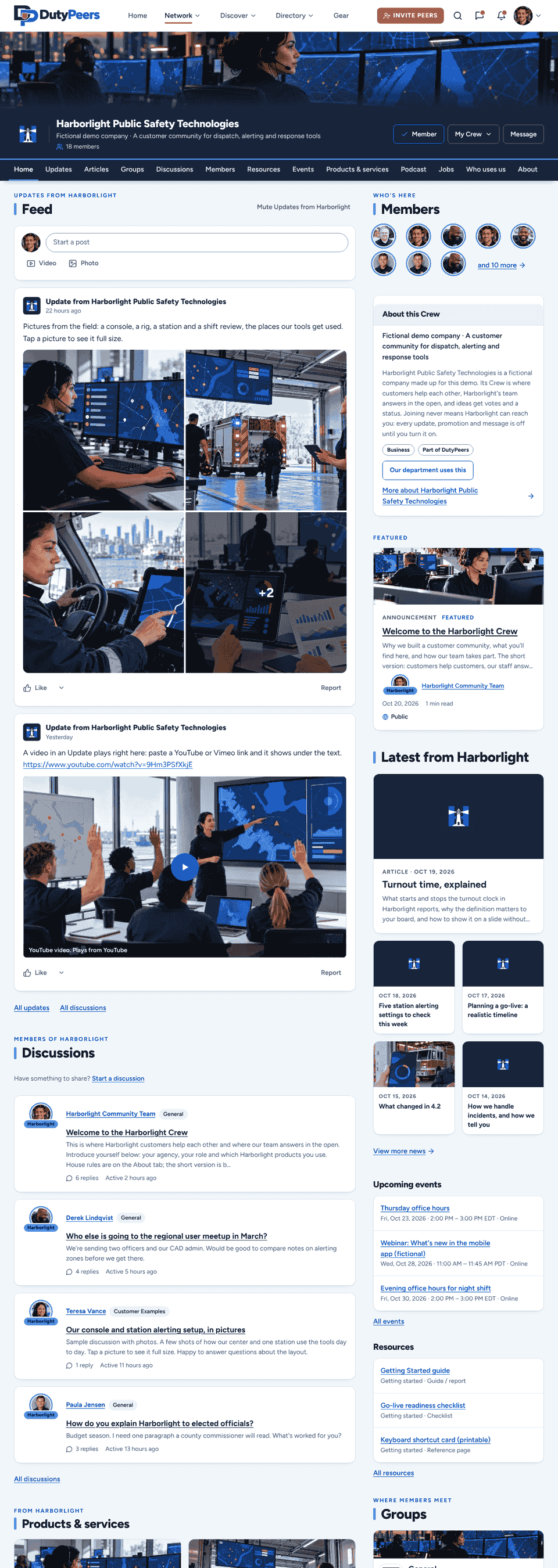
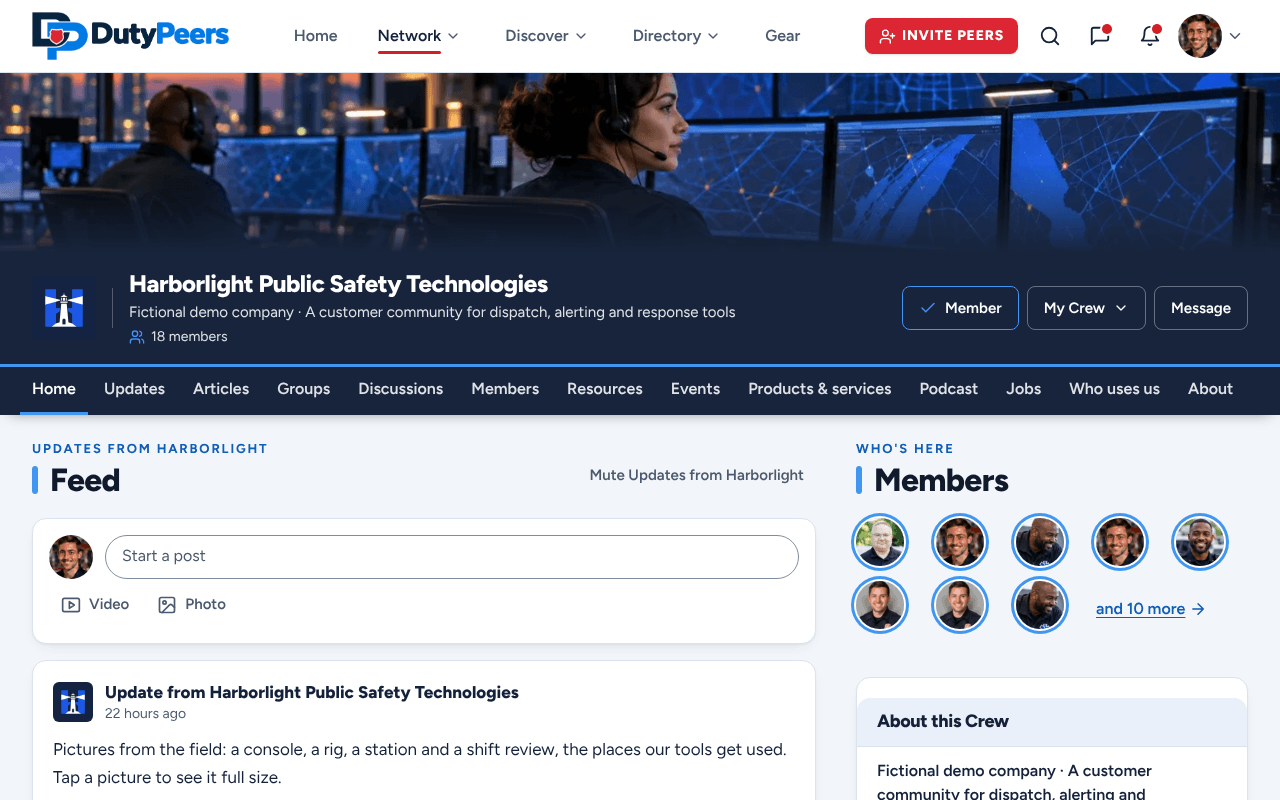
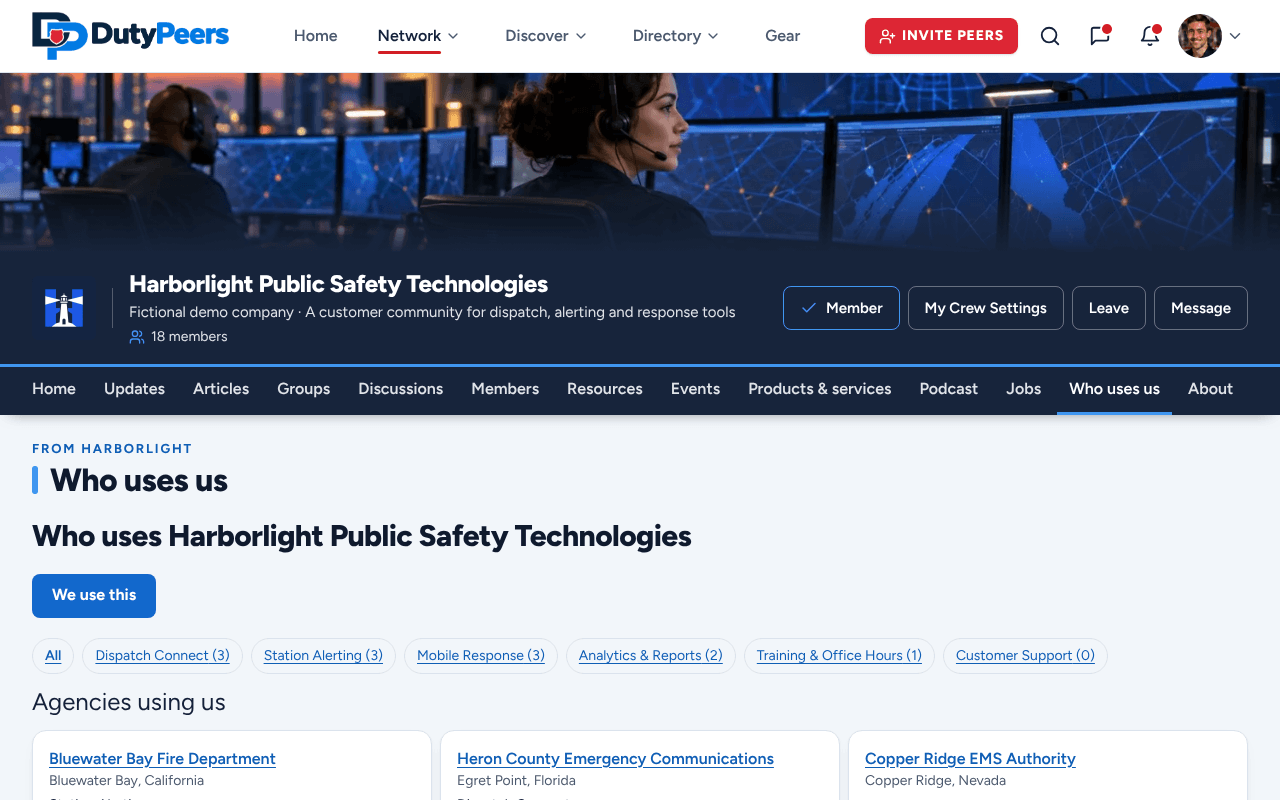
What your Crew's home page looks like, full
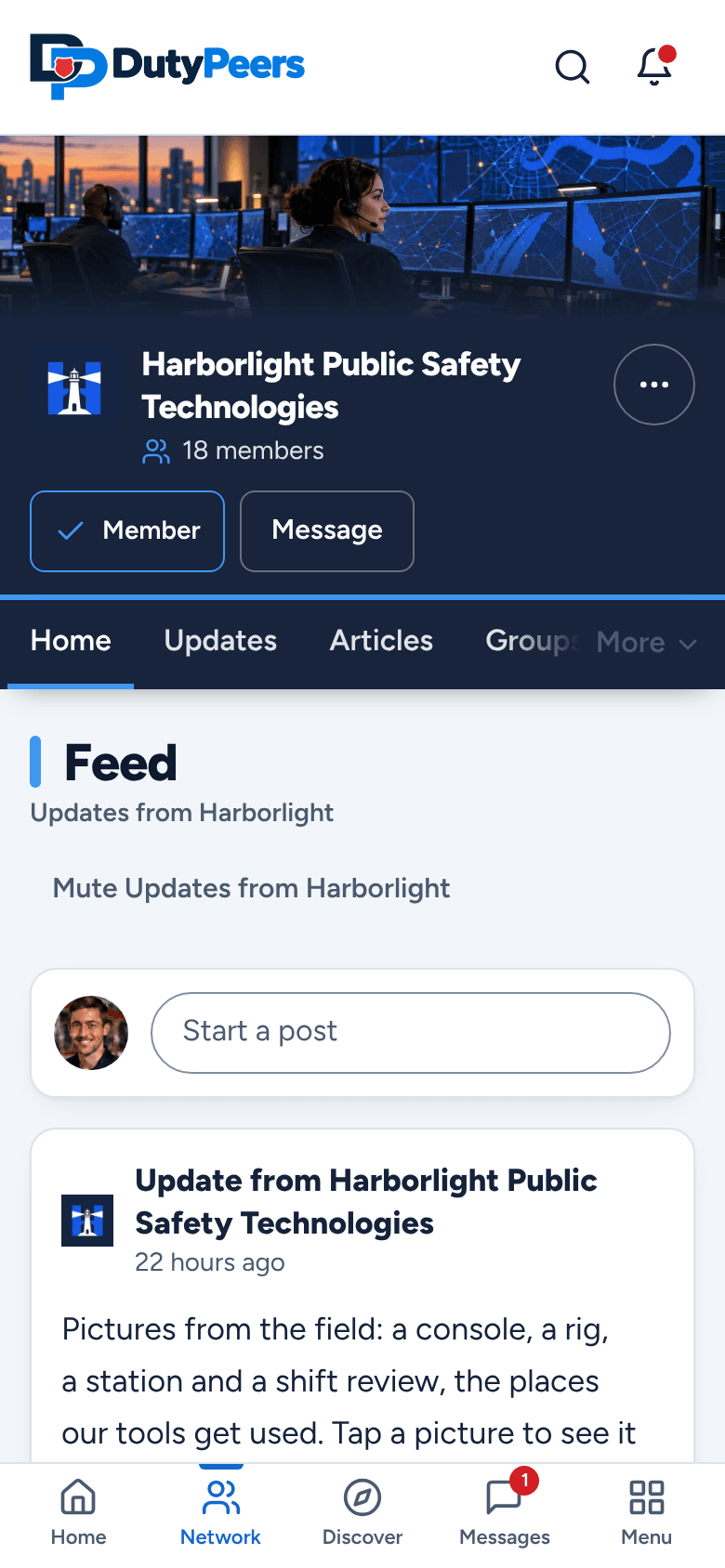
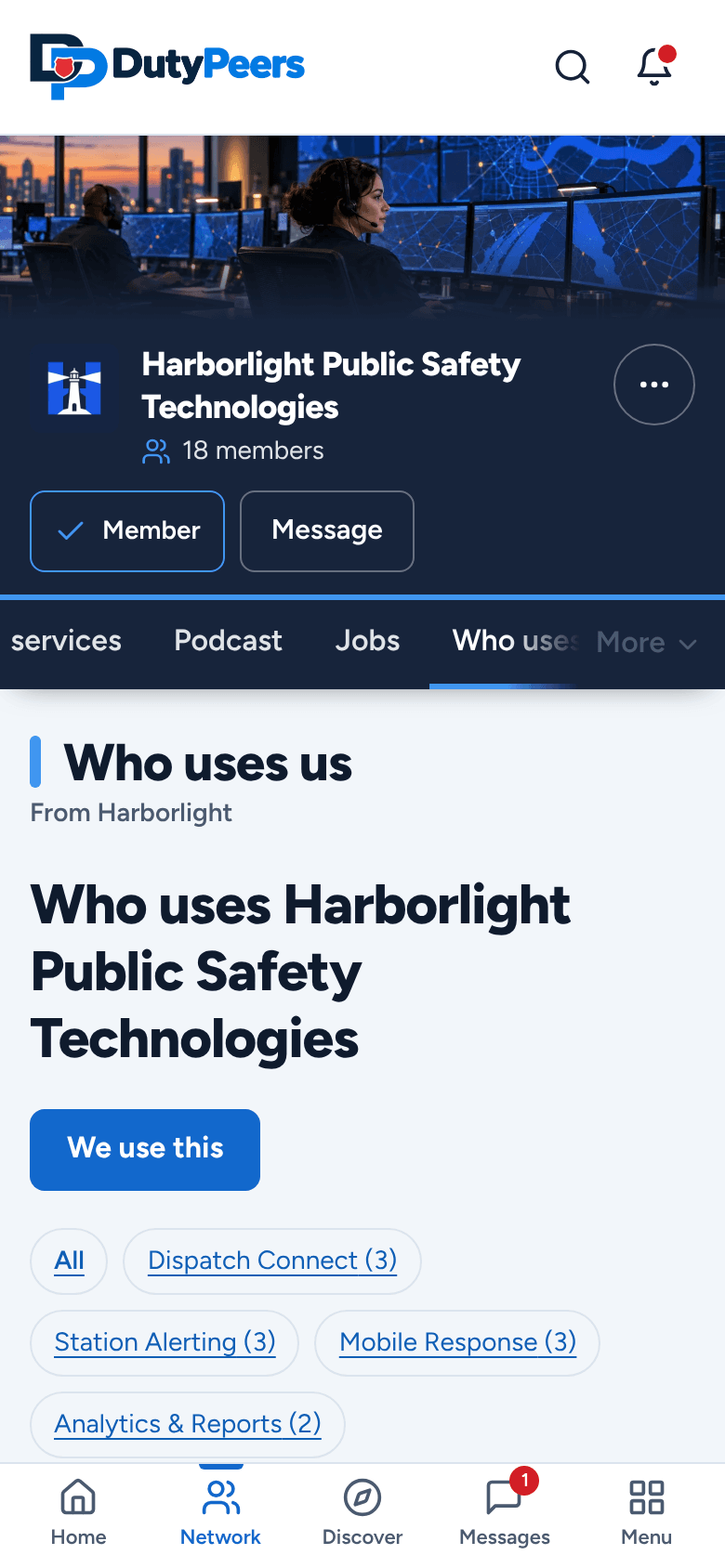
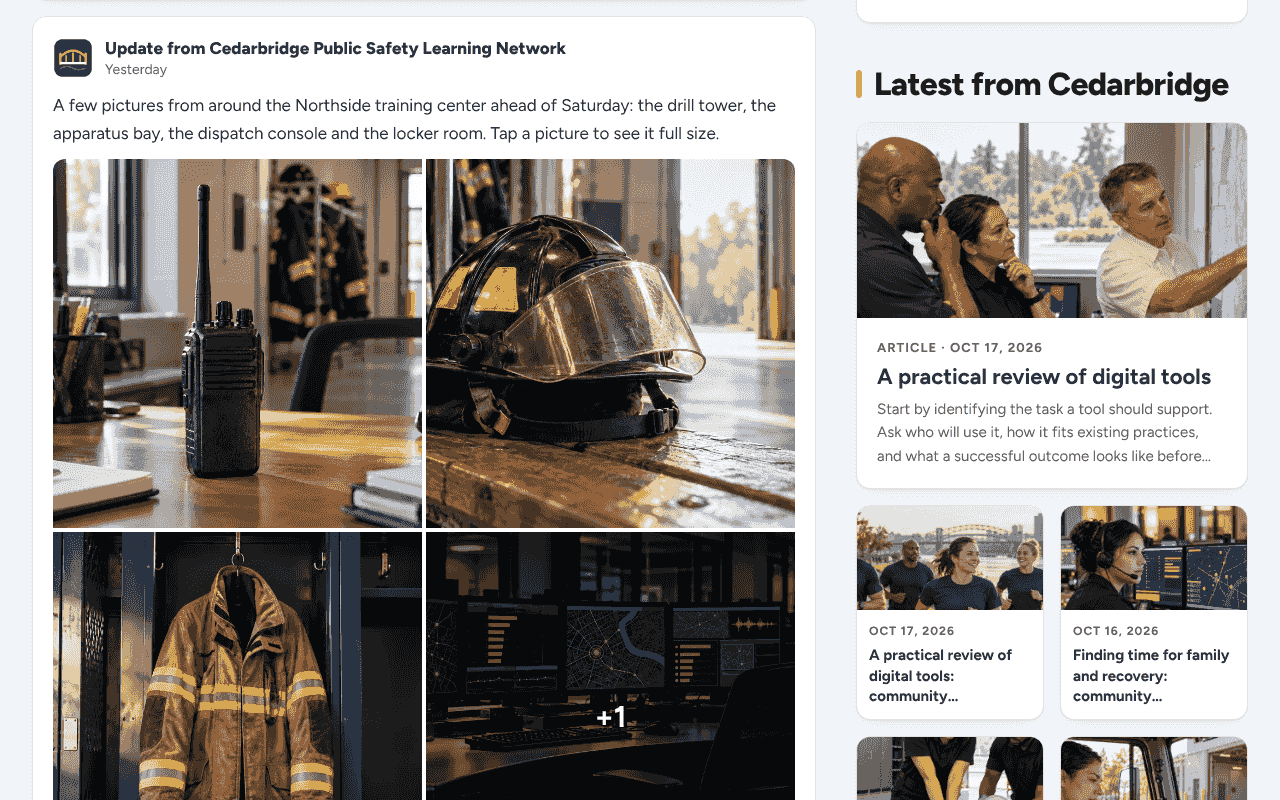
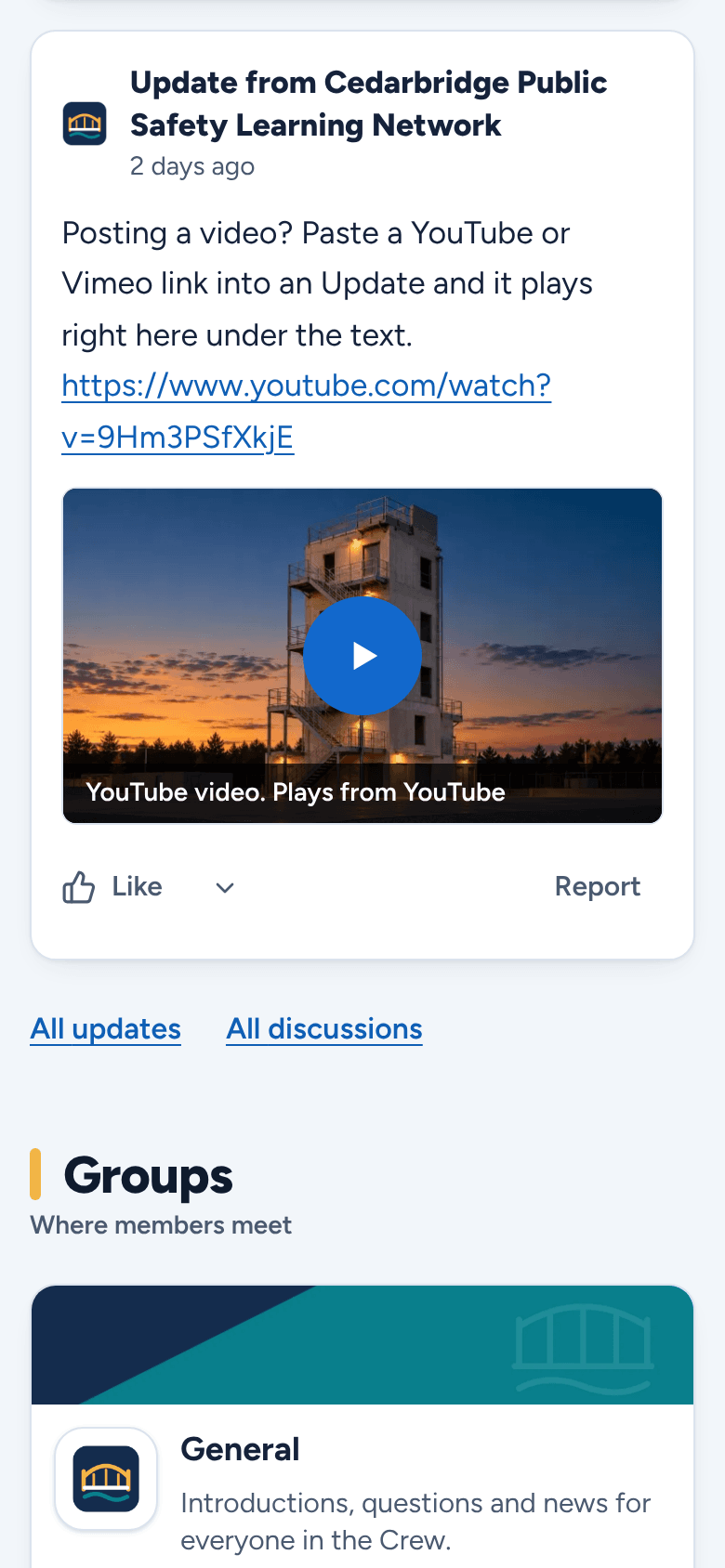
A Business Crew's home page, with its feed, photo galleries and video, articles, events, resources, groups and products and services. This sample is Harborlight, a fictional company. Everything in it is made up.

See it live
Open a real example page. Everyone in it is fictional, and nothing on it can be joined, followed or changed.
A Crew that runs itself
Your Crew runs itself: connect your website, store, YouTube, events calendar and training once, and your Crew stays up to date on its own. When you're ready, turn on the Feed, Discussions and Groups to engage your community.
- Your store, videos, events, training, jobs, podcast and documents arrive as short excerpts that link back to you. There is nothing to post twice.
- It follows your own site. Add a product, event or opening there and it appears on your Crew; take one down and it comes off here too.
- News is checked every hour and videos twice a day; your store, events, training, jobs, podcast and documents every night. Sync now on any address brings a change in right away.
- A sold product comes off, a past event drops off, and a closed opening expires.
- New videos and news show on your home page and their own tabs as soon as they're read.
- Once your Crew is claimed, up to 3 a day can post to your Feed on their own, so a big upload never floods your followers. Events and jobs can too, if you turn them on. One switch turns automatic posts off.
- You still post your own Updates and manage your Feed. A Crew that is not claimed never posts on its own.
- Your Crew is a page that fills itself until you turn the community on.
Your products, on your Crew and in the Gear Locker
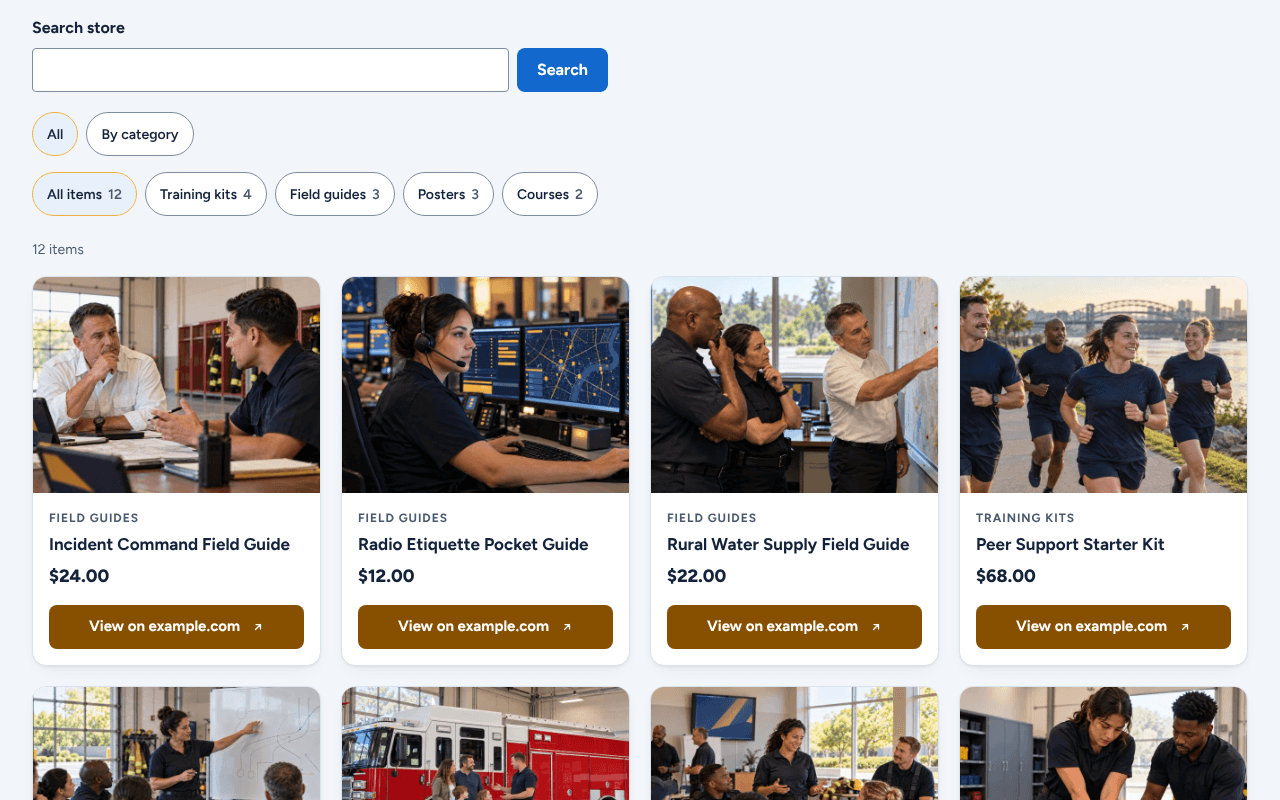
Your products stay on your own site. Your Crew shows them, and every item links back to you.
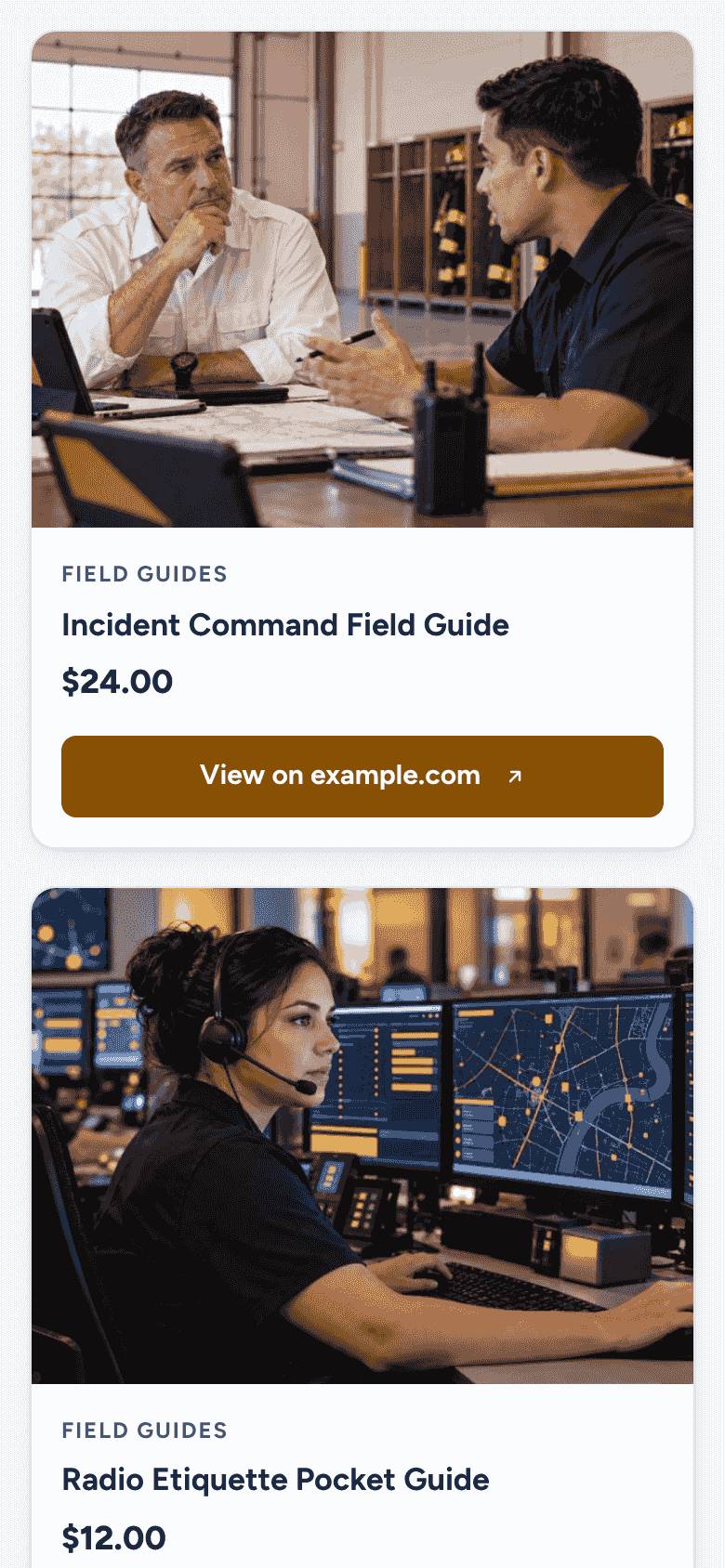
- Your Crew gets a Store tab: picture cards with each item's name and category, a search box and category chips.
- A card's button opens your own site in a new tab. Nobody checks out here.
- Name the tab to fit what you sell, such as Used Fire Trucks for Sale, or switch it off.
- Only what is for sale shows. A sold item comes off with the next good read.
- Your newest items also show in the Gear Locker under From Crews, next to members' gear.
- Shoppers can search From Crews by word, category and Crew. A Crew that is link only or unlisted doesn't appear there.
Connect once, check before you save
Paste an address, press Test, save. The sync does the rest.
- Every address has a Test button. It tells you in plain words what it read, or what needs attention and what to do.
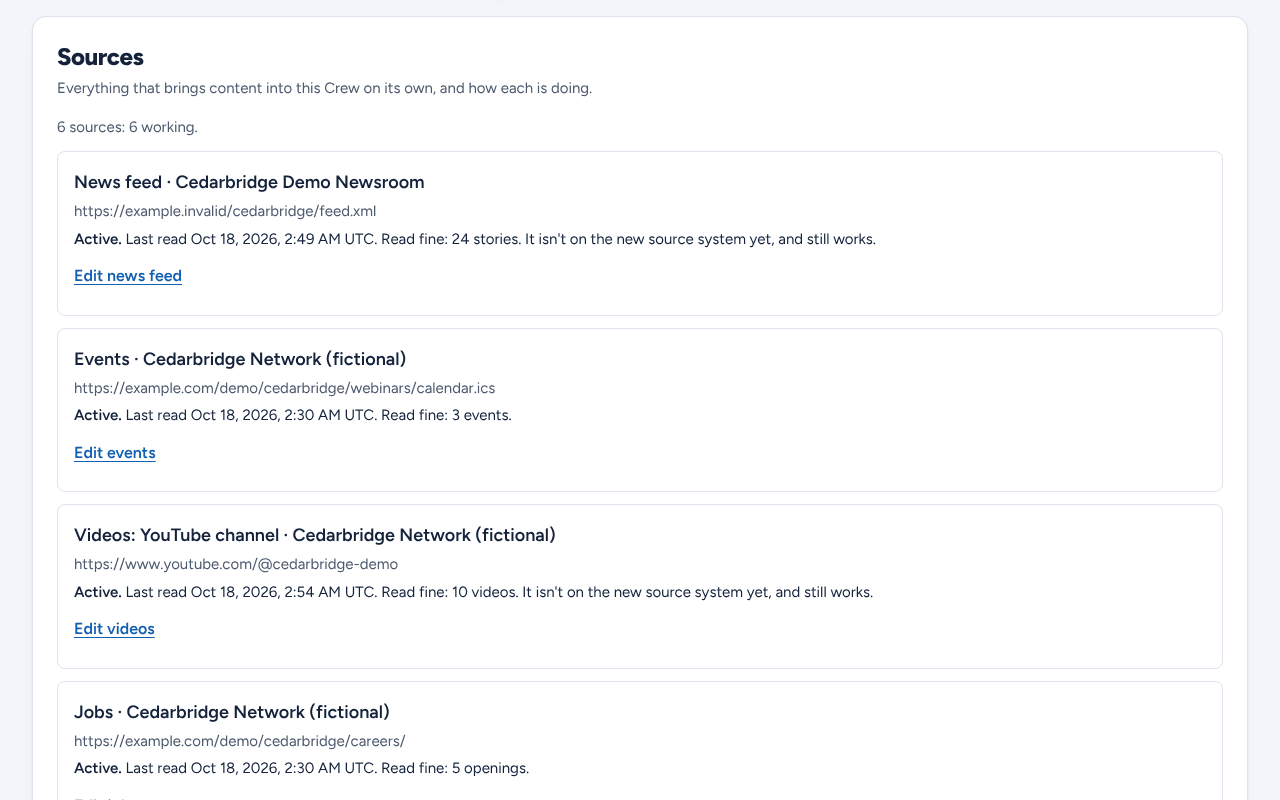
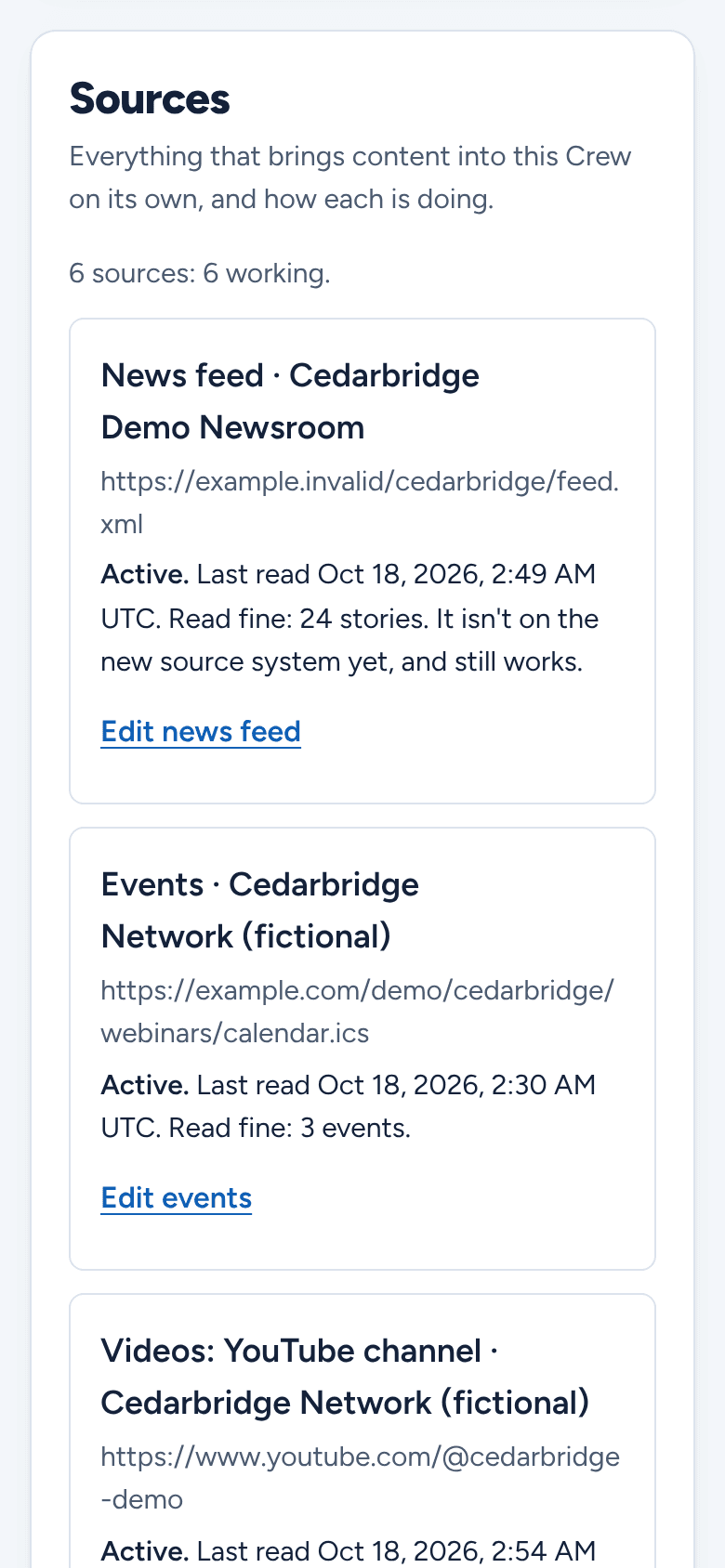
- One Sources overview lists every address that feeds your Crew, when it was last read and how it went.
- A broken site or a half-loaded page can't empty your Crew. If a read lists far fewer items than the last good one, the earlier items stay.
What you get
Your store
Products, trucks or packages from your online store, with the categories you choose. Up to ten addresses.
Your videos
A YouTube or Vimeo channel, and YouTube playlists.
Events and webinars
From your events calendar, and from Zoom, GoTo, ON24 and Teams pages.
Training
Courses from your website.
Jobs
Your openings, from Workable, Greenhouse, Lever and job feeds.
Podcast
Episodes from your podcast feed, played from your host's own file.
Documents
A page or feed of PDFs and documents, linked as resources.
News
Your news, from a feed or any page of your site.
A claimed company page
Claim your company's page. Once our team approves, it shows as managed by your team.
Agencies who use you
Departments can say they use you, with a We use this button.
Videos, events, training and jobs
The things your customers look for, with each item linking back to you.
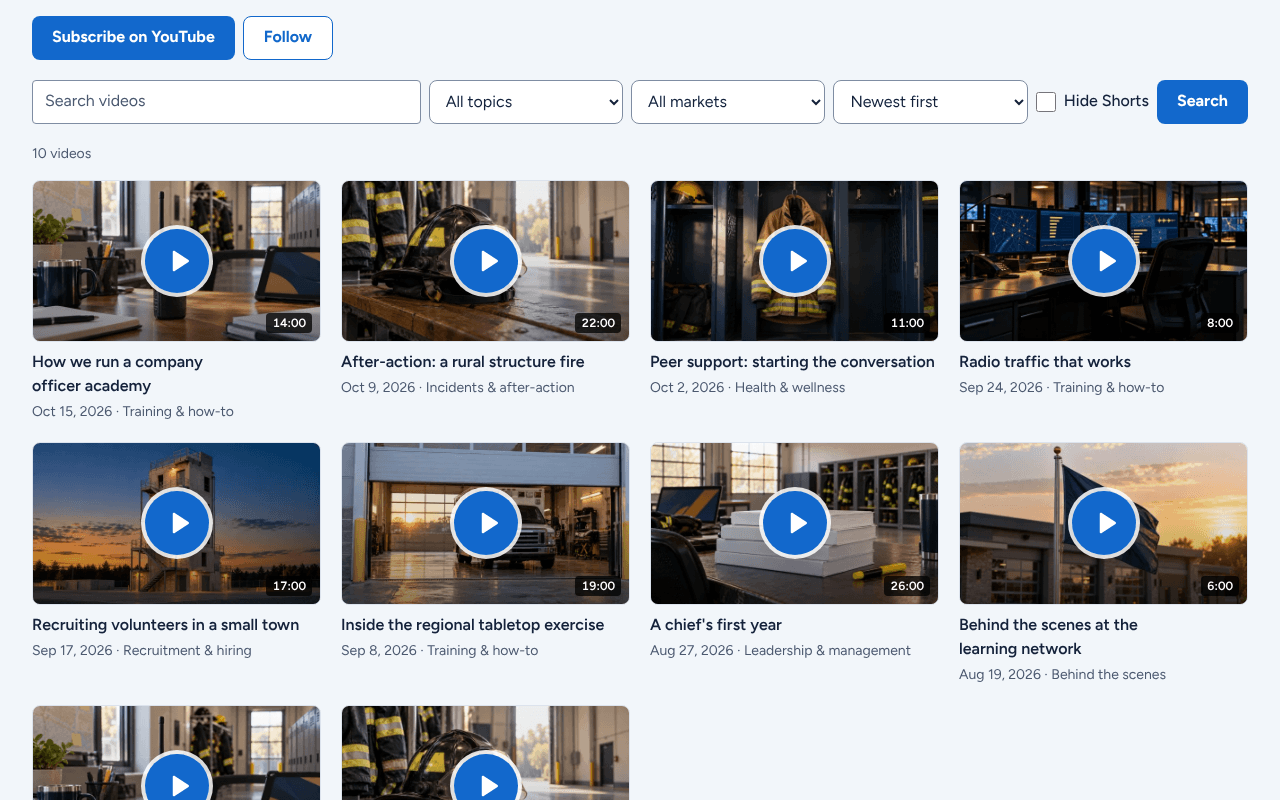
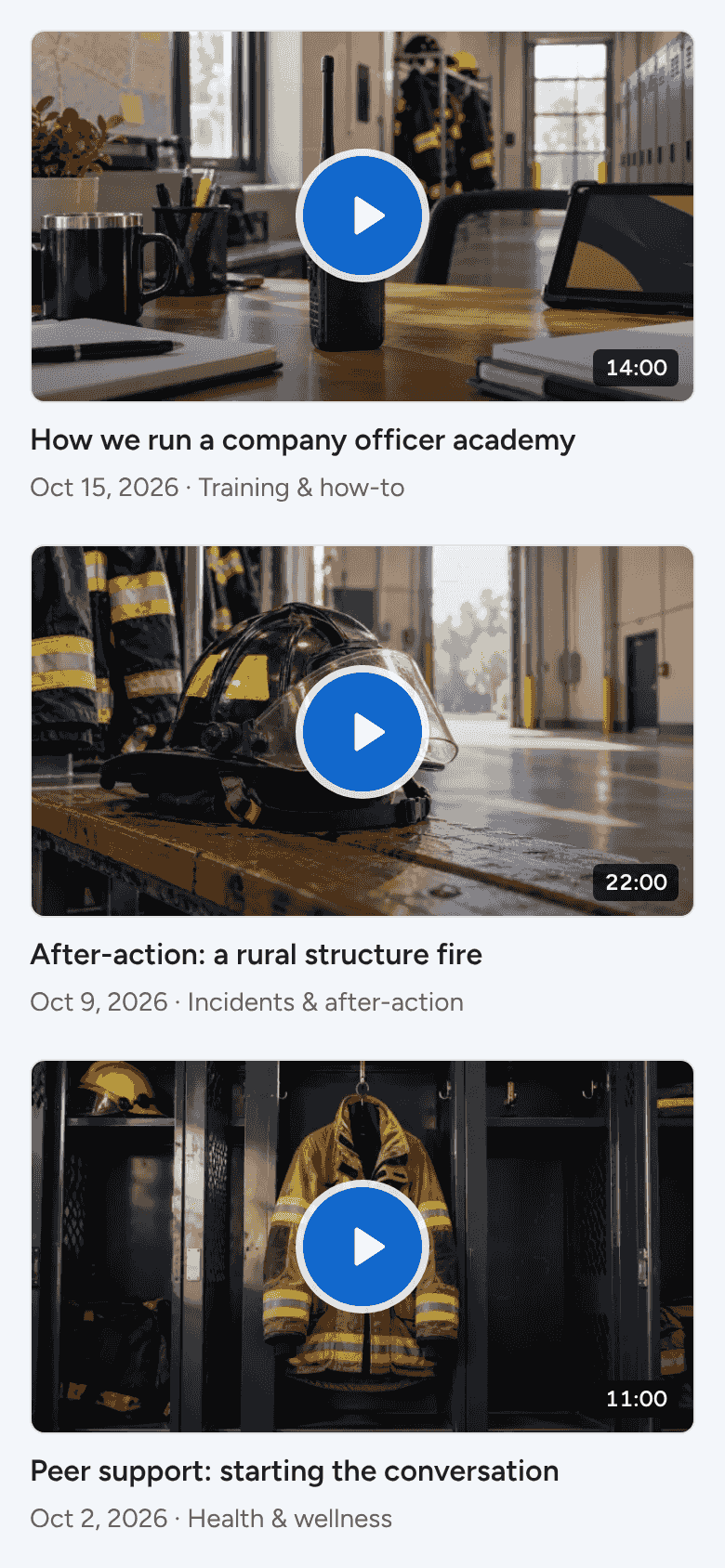
- A YouTube or Vimeo channel and YouTube playlists, checked for new videos.
- Events from iCal, schema.org Event, The Events Calendar or an RSS feed with dates, and webinar pages from Zoom, GoTo, ON24 and Teams.
- Courses from schema.org Course, a course feed or links to course pages.
- Openings from Workable, Greenhouse, Lever, JobPosting pages and job feeds, and podcast episodes from your feed.
Claim your page, and be found by agencies
If your company is in the Agency Tech directory, it has a page. Claim it.
- Claim your company's page: send your role and a work email. An address on your company's own domain is the strongest claim.
- Our team reviews each claim. Once it's approved, the page shows as managed by your team, and you ask for changes through Contact.
- If we have already set up a Crew for your company, claim it the same way and you become its owner.
- On your Crew's Who uses us tab, a department marks that it uses your company, or one of your products, with We use this.
- Your company page lists your products and categories in the Agency Tech directory, where verified agency members compare systems. Our team links your company page to your Crew.
- Only verified agency members and our staff see which agencies use a company. It isn't public.
Engage when you're ready
Automation and engagement are two steps. The first never needs the second.
- Turn on the Feed, Discussions and Groups when you want them. Your sources keep flowing either way.
- Product groups, support questions with official answers from your team, feature requests your customers can vote on, and release notes.
- Private groups for your beta program or advisory board sit next to the open ones.
- Every channel to a member is opt-in. Nothing is pre-checked, and a member's email address is never shared with you unless they choose to share it.
- Name your company email domains, and employees who confirm a code carry an Employee label.
How it works
Ask for your Crew
Tell us who you are. A person on our team writes back and sets it up with you.
Connect your sources
Paste your store, channel, calendar and jobs addresses. Press Test, then save.
Let it run
Your Crew stays up to date on its own. Turn on the Feed, Discussions and Groups when you're ready.
Questions
Do I need to build or host anything?
No. Sign-in, verification, profiles, messaging and moderation tools come with a Crew. You connect your addresses and your content comes in.
What is copied from my site?
Short excerpts: a title, a summary of up to 400 characters, a resized copy of the picture, a date and a link to the original. We never keep an article, a product description or a PDF.
Can I check an address before I save it?
Yes. Every field that takes an address has a Test button. It says what it read, or what needs attention and what to do next.
Do I need the community turned on?
No. With Groups and Discussions off, your Crew is a page that fills itself. Turn them on when you want to talk with your customers.
Who sees which agencies use us?
Verified agency members and our staff. The lists aren't public, and they aren't in search engines.
Who else it's for
- PeopleFind your people, share what you know and keep control of your privacy.See the page
- AgenciesAn agency page with its people, news, videos and events, and a Crew for your department.See the page
- OrganizationsAn Organization Crew that runs itself, with groups, events, training and documents for your members.See the page
- MediaA Media Crew that brings in your stories, podcast, videos and events, with readers who talk back.See the page
There is a place for you here.
Career, volunteer, paid-on-call or reserve. Public safety only, no ads, and private by default.
Opening in waves with an invite link or code.