


For agencies
Your department's page, with its news, videos and events
Your agency page finds your news, videos and events on its own. Our staff review each find before it shows.
For departments and agencies, career and volunteer: fire, EMS, law enforcement, dispatch, emergency management and search and rescue. Your page also shows your people, current and retired, and gives you Capabilities, Agency Tech, a bulk invite and a Crew of your own.
Two things every agency gets
Your agency page
Your public face. It already exists and anyone can see it. We keep it filled with your news, videos and events. You claim it to manage it.
About your agency pageYour agency's Crew
Your people's own space, members-only if you want. You create and run it: groups, discussions and announcements.
About your agency's Crew
Part 1
Your agency page
The public page for your department. Anyone can see it, so people find you.
An agency page that looks like a real presence
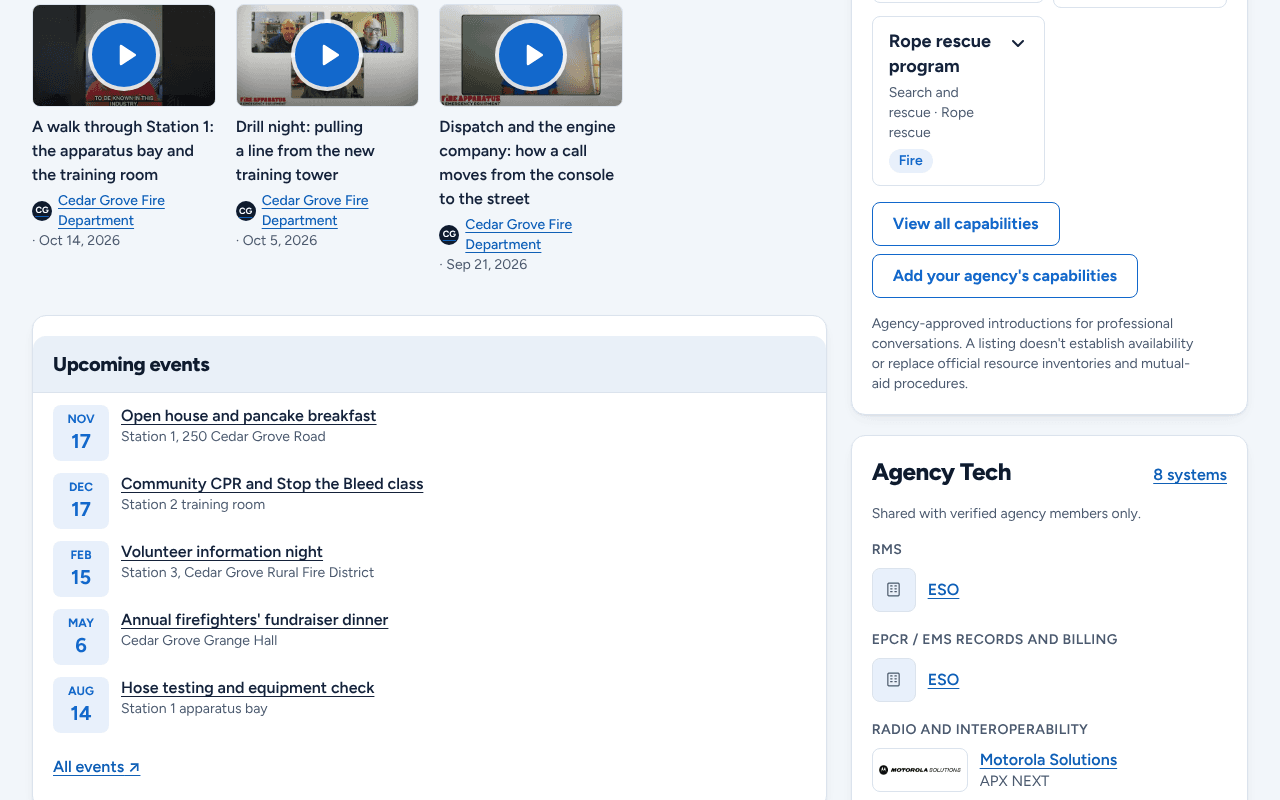
Your page shows your newest stories, your latest videos and your upcoming events, each linking back to you.
- We look at your own website for a YouTube channel, a news feed and an events calendar.
- Nothing goes live on its own. Everything we find goes to our staff first, and they approve or skip it. If we get one wrong, it never shows.
- Your page admins can switch a found source off or on, or remove it. Once your Crew exists, its admins manage them there.
- No news or videos found? The page still shows your facts, your about and your people, with no empty boxes.
- Once you manage the page, you add your logo and description and post openings.
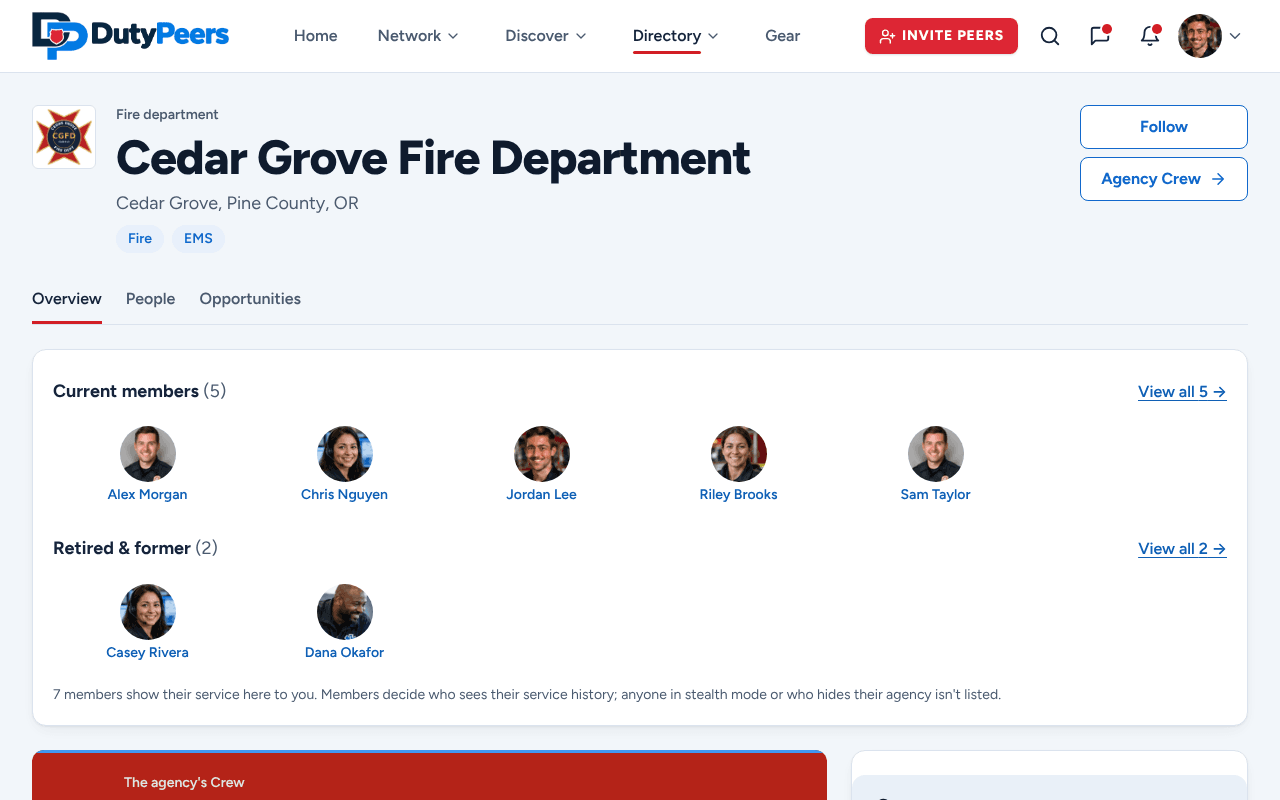
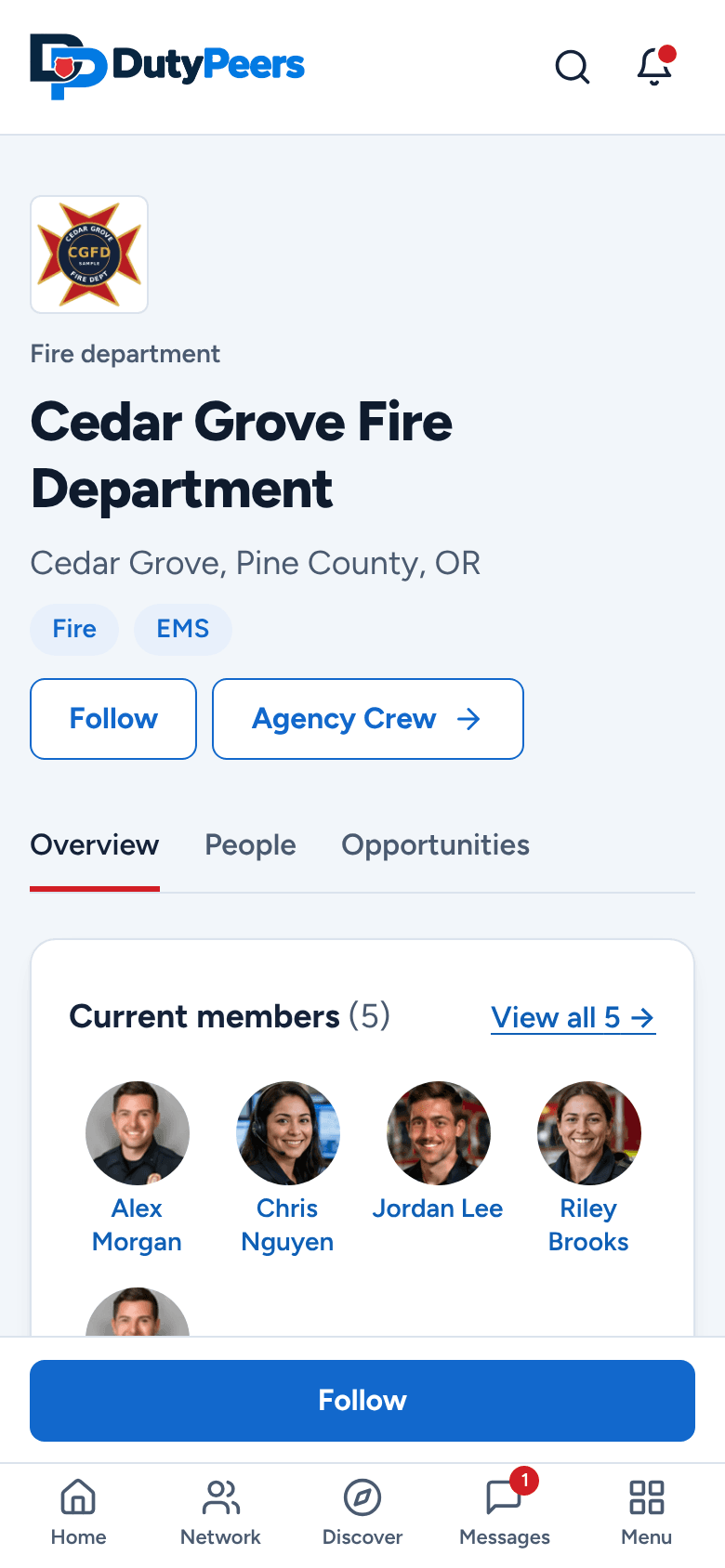
Your people, current and retired
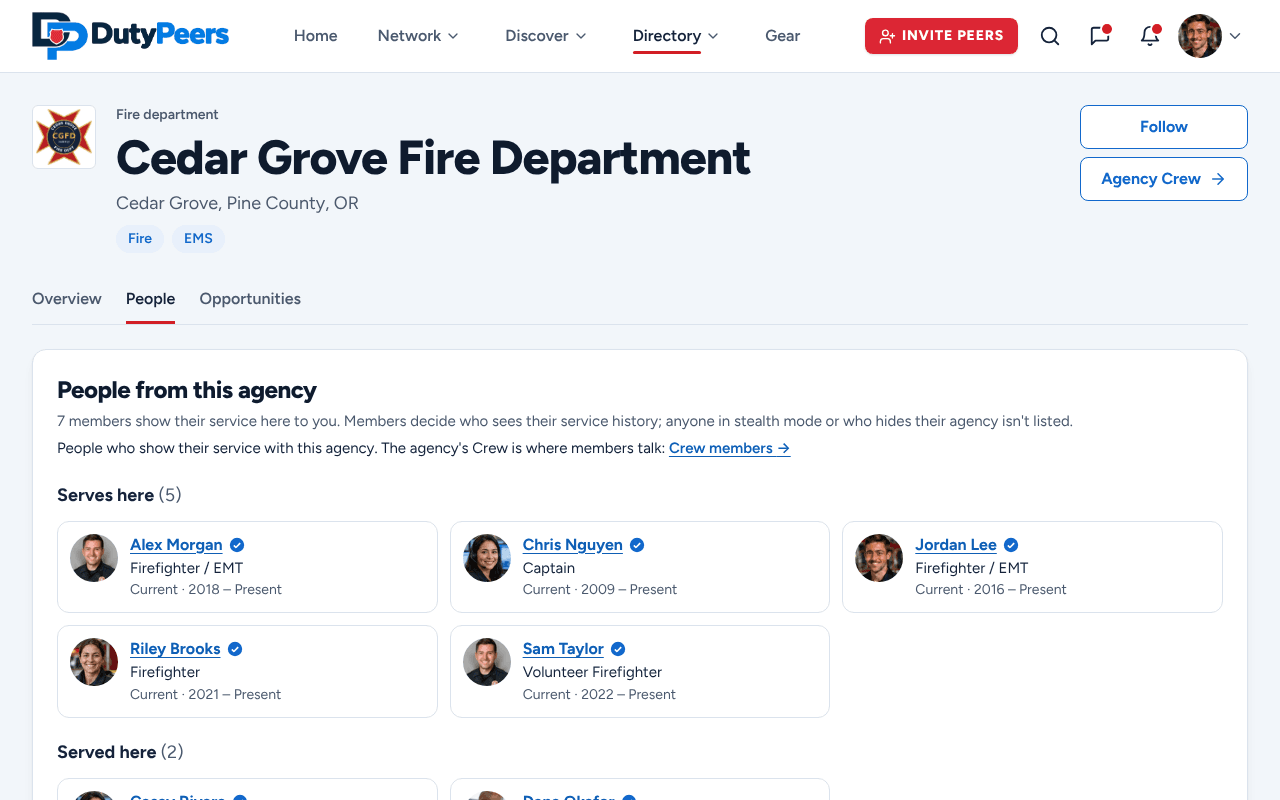
The top of your page shows who serves with you, and who served.
- Current members and Retired and former members, as one or two rows of faces, each linking to the profile.
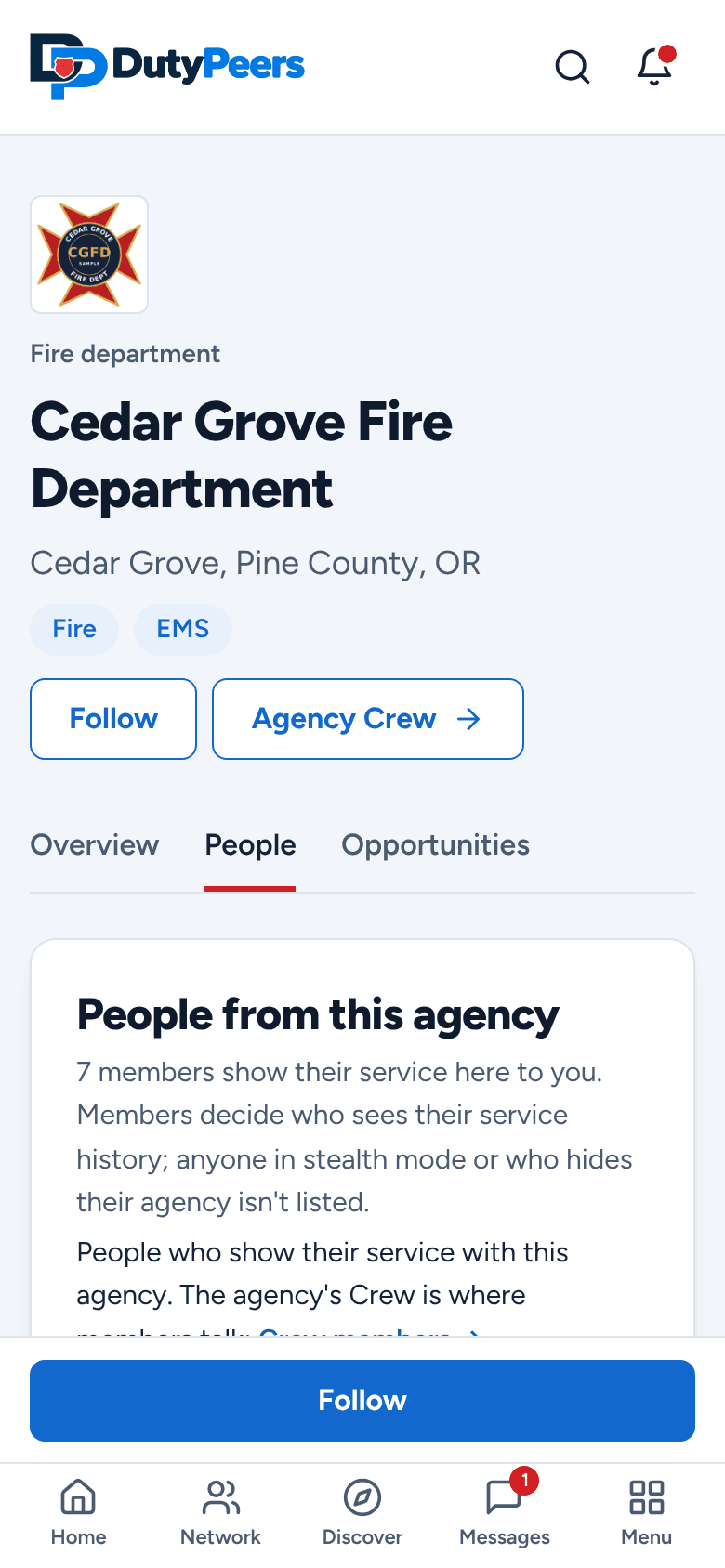
- View all opens the People tab. Only people whose privacy settings allow it appear.
Capabilities and Agency Tech
Introduce your teams to verified peers, and compare systems before you buy.
- Capabilities introduce your specialized teams, programs and resources, like a swift-water team, a hazmat team or a backup 911 center.
- A capability is an introduction. It doesn't establish availability, authorize deployment or replace official mutual-aid procedures.
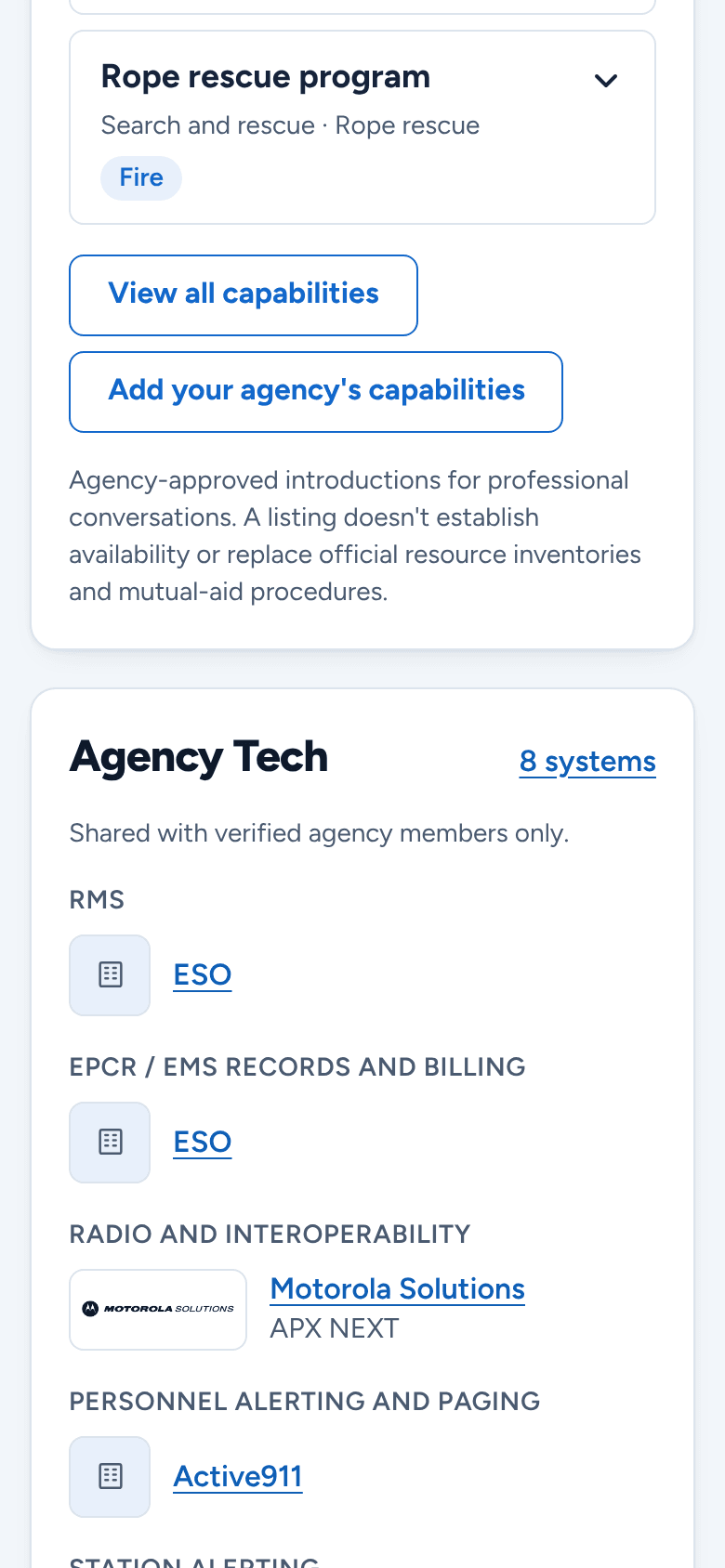
- Agency Tech lists the systems you run, from CAD and records to alerting and body-worn video, so a peer can ask a neighboring agency.
- Only your confirmed page admins add listings. Only verified agency members and our staff see them. Never the public, search engines or vendors.
Claim your page: request access from your agency's page. You confirm with an email address on your agency's own domain, then our team reviews it.
Every grant is recorded and can be taken back.
Claim your pagePart 2
Your agency's Crew
Your people's own space. You create it and your admins run it.
What your agency's Crew looks like, full
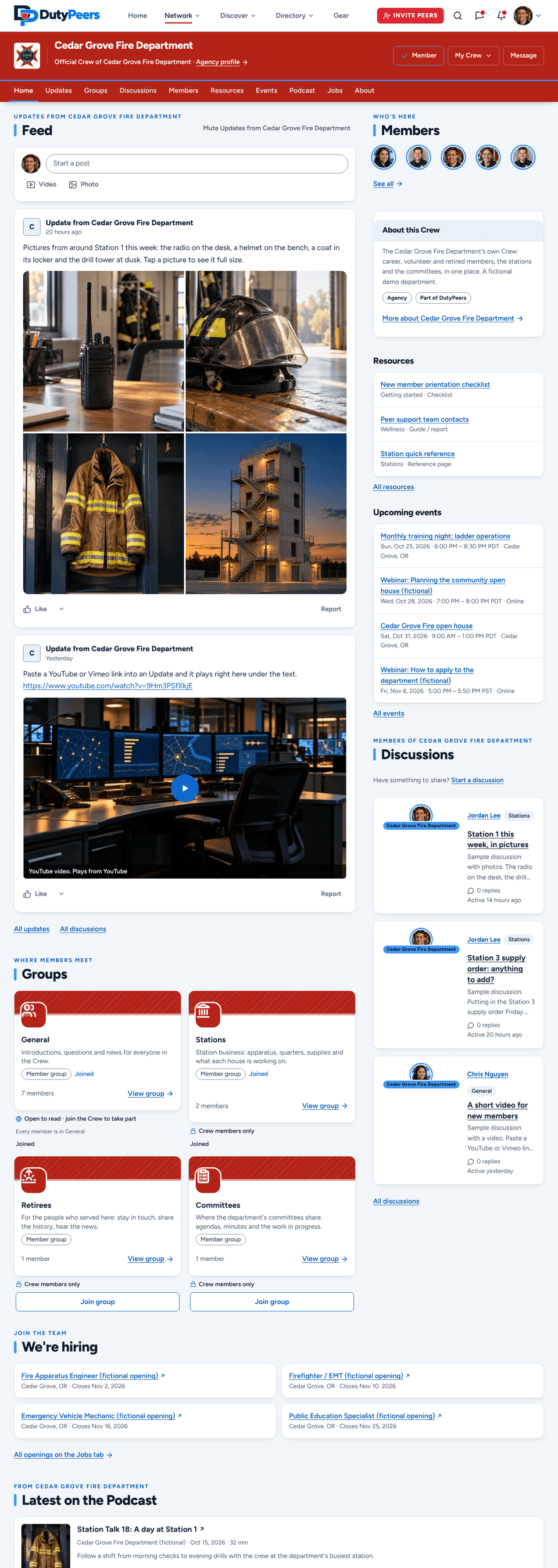
An agency Crew's home page, with its feed, member faces, resources, events, groups, discussions, openings and podcast. This sample is the fictional Cedar Grove Fire Department. Everyone in it is made up.

See it live
Open a real example page. Everyone in it is fictional, and nothing on it can be joined, followed or changed.
A Crew that keeps itself current
Create your agency's Crew to bring in your news, videos, events and training automatically. Turn on discussions and groups when you're ready.
- Your news, videos and events carry over, so nothing is set up twice.
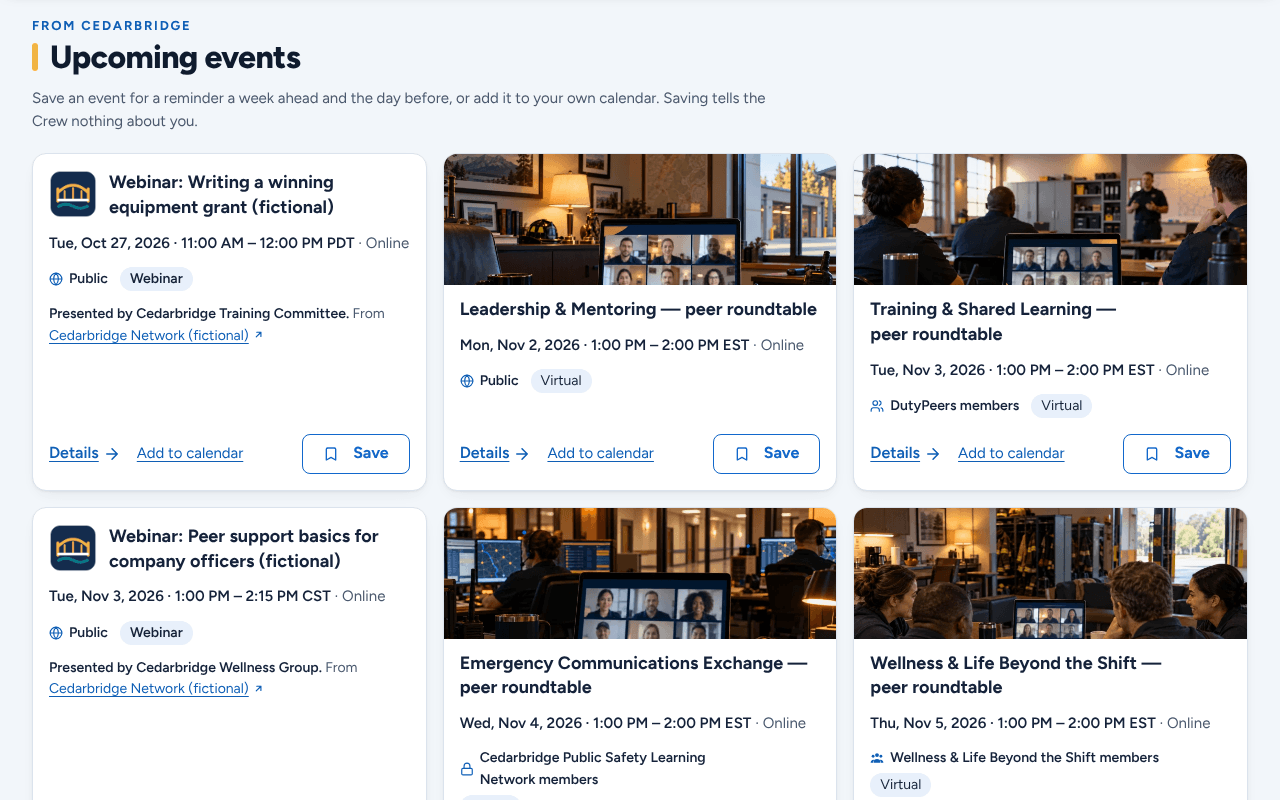
- New videos and news your Crew brings in can post to its Feed on their own, up to 3 a day. Events and openings can too, if you turn them on. One switch turns automatic posts off.
- Your admins still post and manage the Feed themselves.
- News is checked every hour and videos twice a day; your store, events, training, jobs, podcast and documents every night. Sync now on any address brings a change in right away.
- Groups for shifts, stations, committees, retirees and recruits, with discussions where your people already are.
- Verified members only, current, retired or both, as you choose. Someone who leaves the agency leaves its members-only groups.
- Your department admins set who can join and post, approve members, appoint group moderators and publish announcements.
- Every channel to a member is opt-in, and nothing is pre-checked.
Bring your whole department
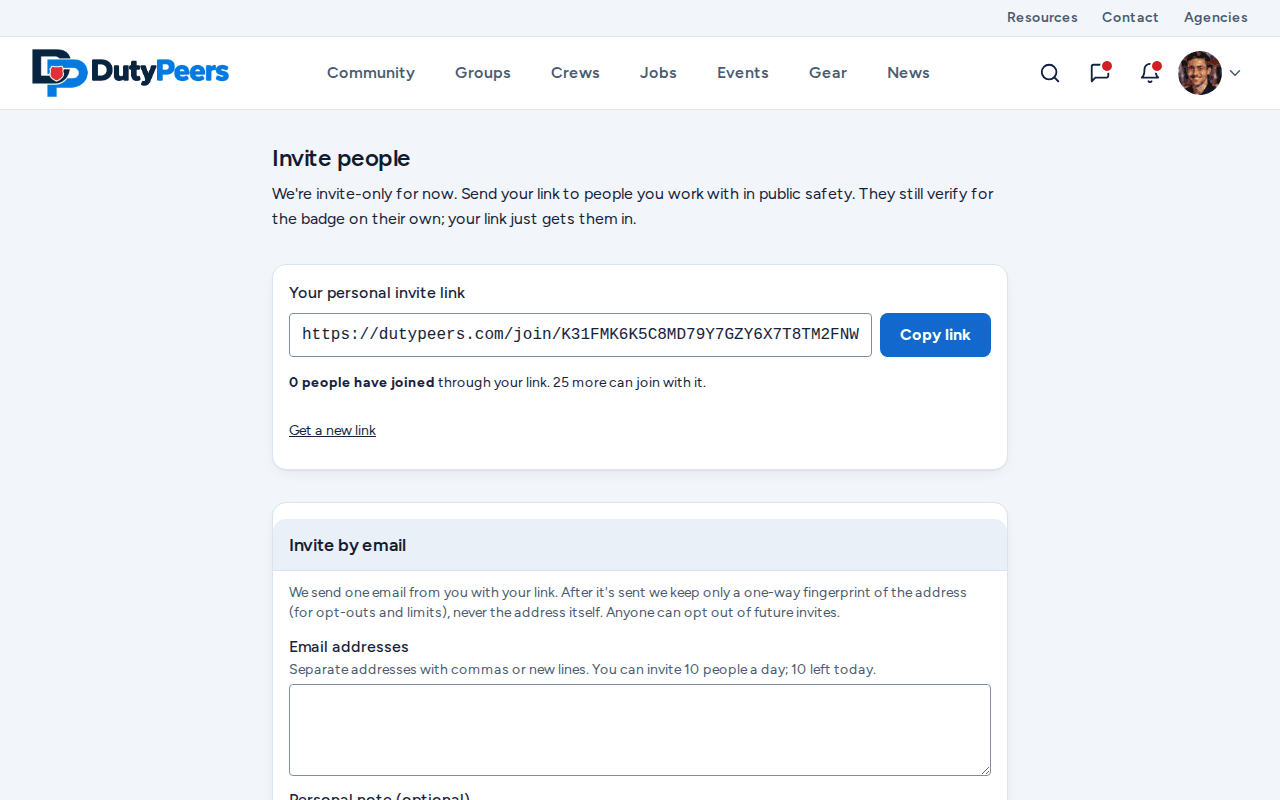
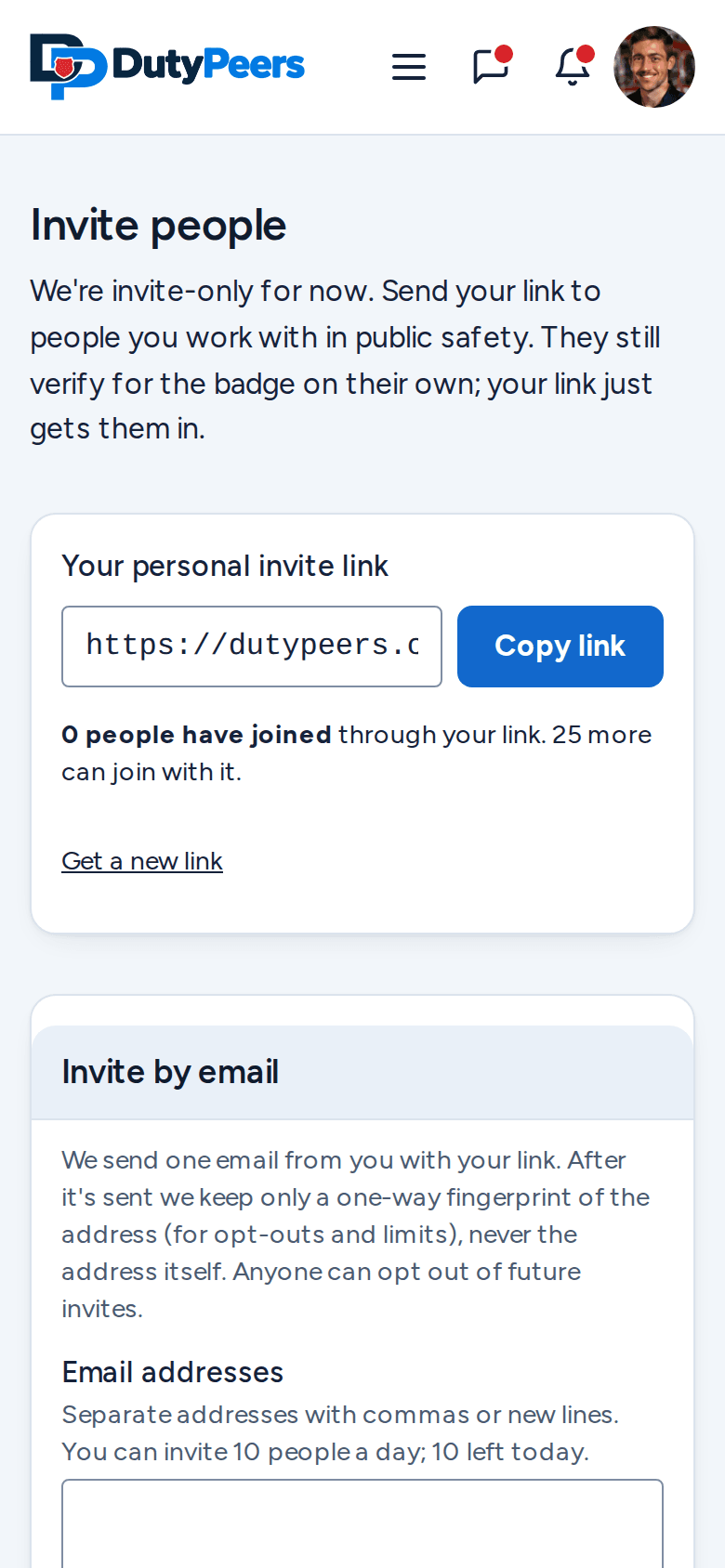
Get your people into the Crew with personal invites.
- Ask for a bulk invite and we set it up with you. Each of your members gets a personal invite from your agency, and everyone who joins with the address it was sent to is verified at your agency.
- No one is signed up without accepting their own invite, and anyone can opt out of our emails.
How it works
Claim your page
Find your agency in the directory and request access. Confirm with your agency's email, and our team reviews it.
Create your Crew
Department admins create the Crew from the agency page. Connect your website, YouTube channel, calendar and training once.
Bring your people
Ask for a bulk invite, or share your link. Turn on discussions and groups when you're ready.
Questions
Who can claim an agency page?
Anyone who can confirm an email address on the agency's own domain. You request access from the agency's page, then a person on our team reviews it.
Does anything show on our page without review?
No. Whatever we find on your website goes to our staff first. They approve or skip each one.
Is our agency in the directory?
The directory lists agencies from public sources. If yours is missing, suggest it when you're signed in. Our staff approve a suggestion before it's listed.
Who sees our capabilities and technology?
Verified agency members and our staff. Never the public, search engines or vendors.
Can the Crew reach into our members' inboxes?
No. Every channel from a Crew to a member is opt-in, and members change it any time. Joining turns nothing on.
Who else it's for
- PeopleFind your people, share what you know and keep control of your privacy.See the page
- BusinessesA Business Crew that runs itself, from your store, videos, events, training, jobs and podcast.See the page
- OrganizationsAn Organization Crew that runs itself, with groups, events, training and documents for your members.See the page
- MediaA Media Crew that brings in your stories, podcast, videos and events, with readers who talk back.See the page
There is a place for you here.
Career, volunteer, paid-on-call or reserve. Public safety only, no ads, and private by default.
Opening in waves with an invite link or code.