
For media
Your stories, podcast and events, in front of the people who serve
Connect your feeds, podcast, video channel and events once. Your Media Crew stays current on its own, and your readers meet in discussions.
For magazines, trade publications, podcasts, newsletters and other publishers that cover fire, EMS, law enforcement, dispatch, emergency management and search and rescue.
What your Media Crew looks like, full
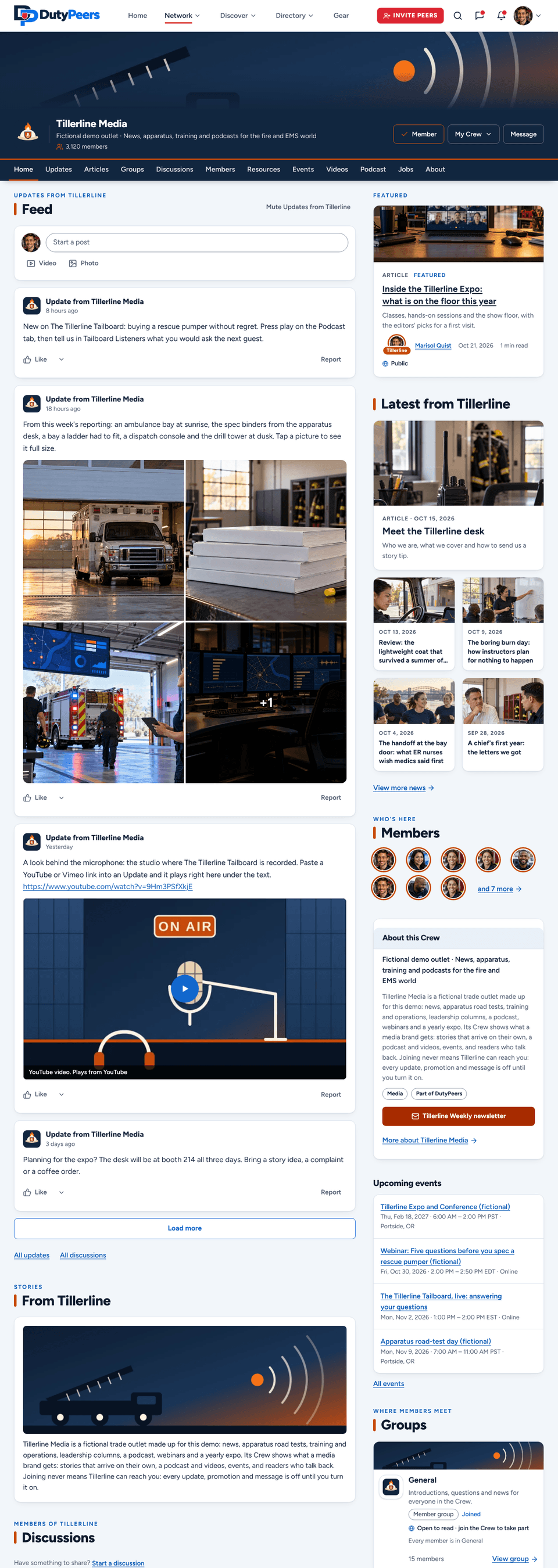
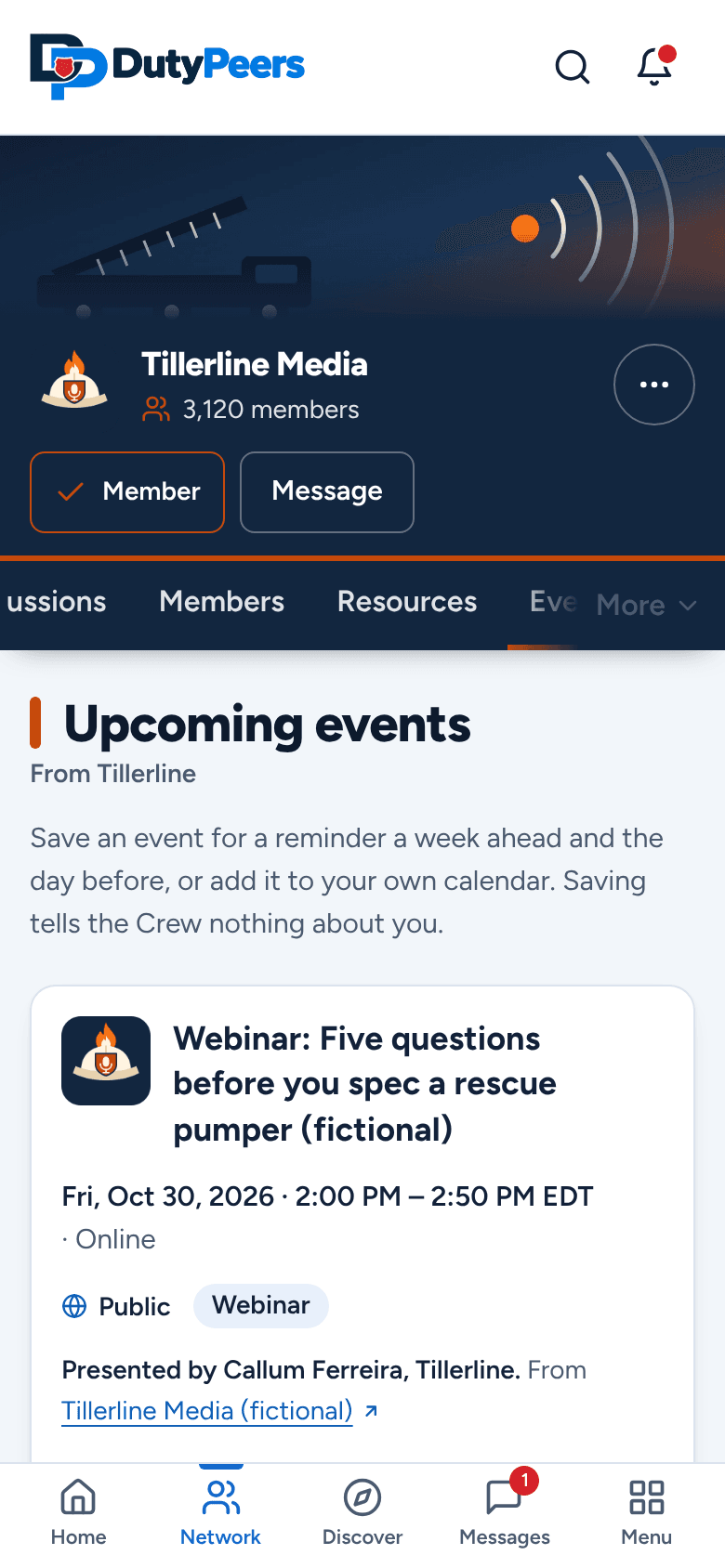
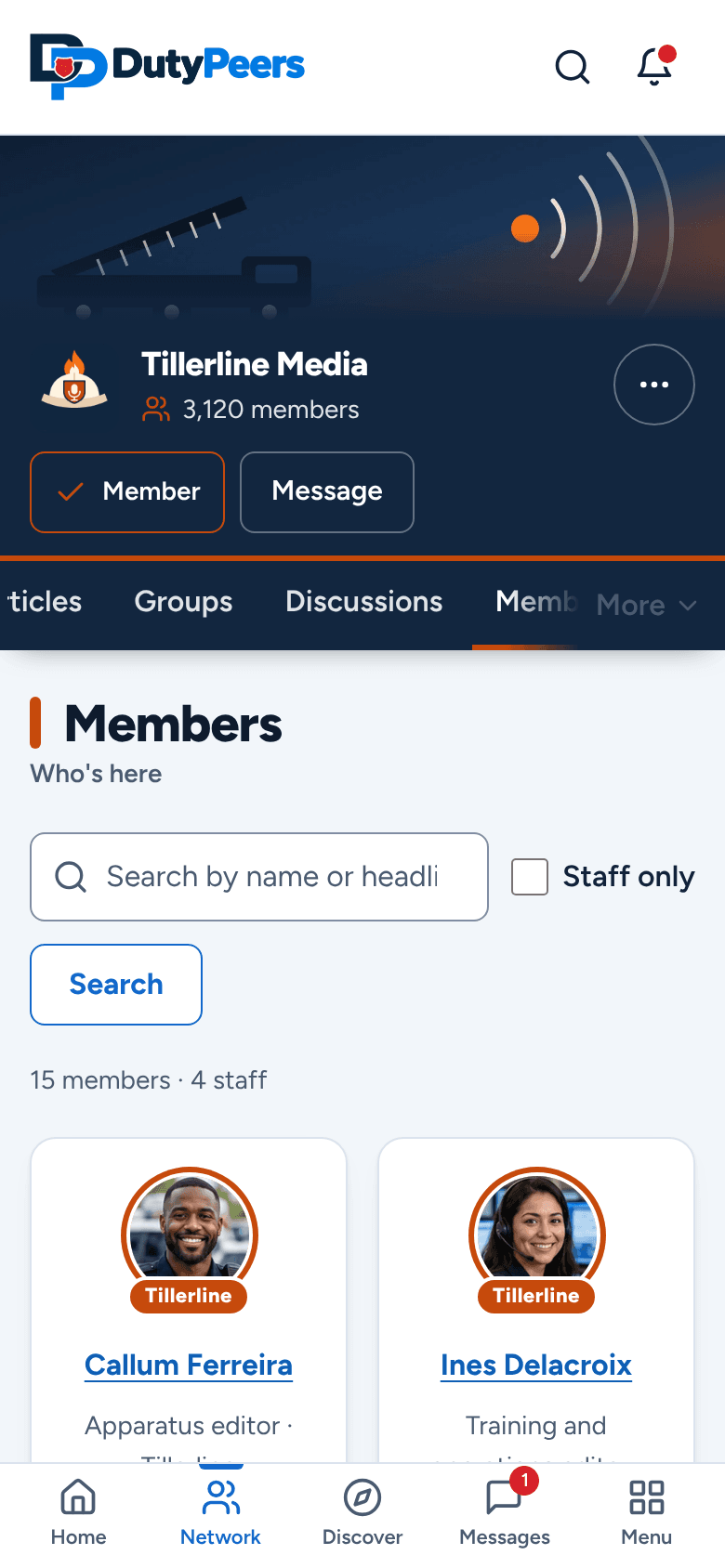
A Media Crew's home page, with its feed, featured story, news, podcast, videos, events, resources, groups and discussions. This sample is Tillerline Media, a fictional trade outlet. Everyone and everything in it is made up.

See it live
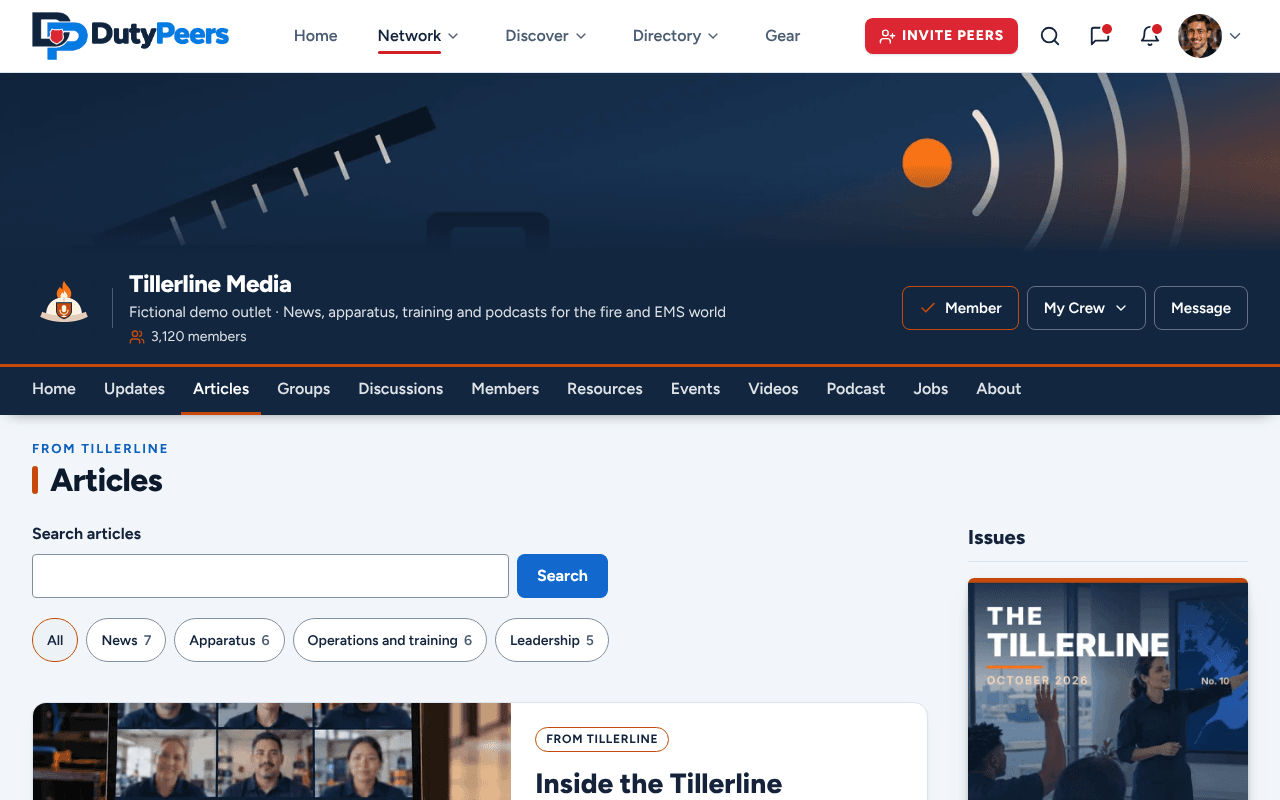
Open a real example page. Everyone in it is fictional, and nothing on it can be joined, followed or changed.
A Media Crew that runs itself
Your Crew runs itself: connect your website, store, YouTube, events calendar and training once, and your Crew stays up to date on its own. When you're ready, turn on the Feed, Discussions and Groups to engage your community.
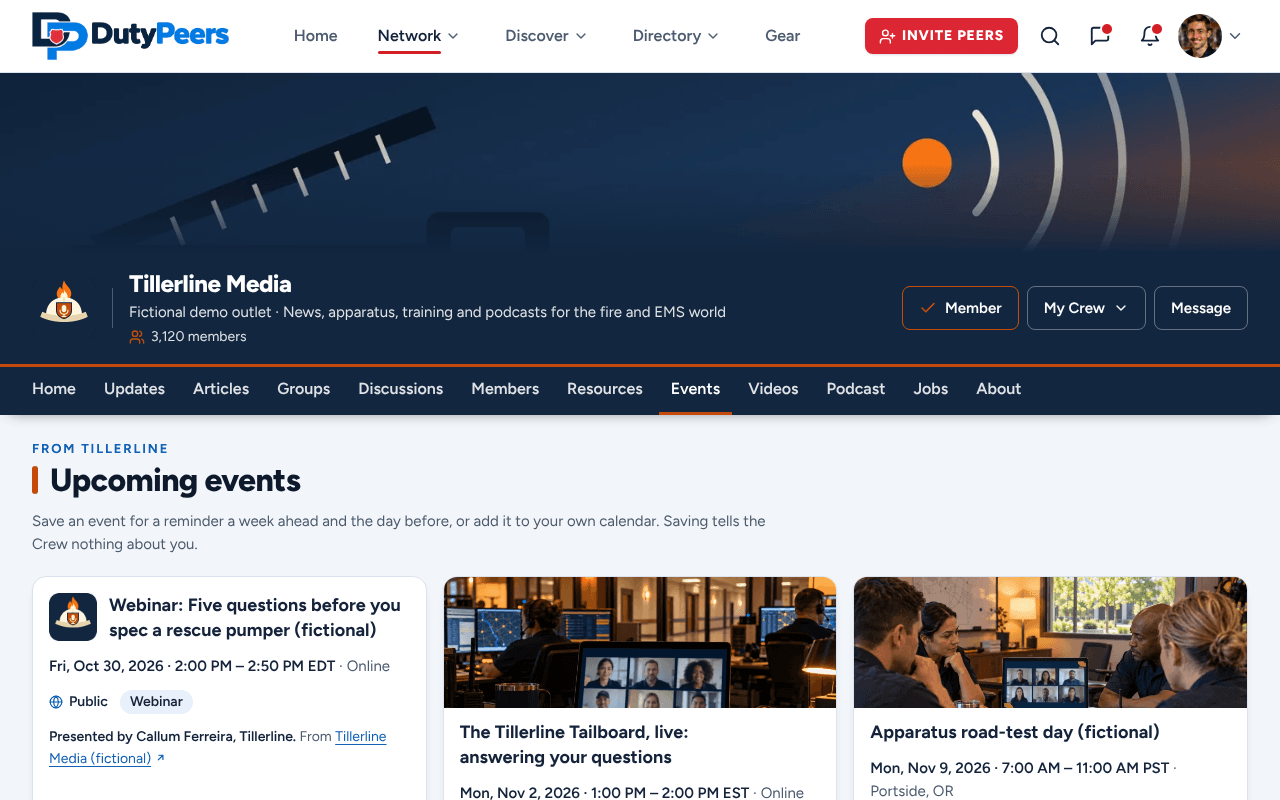
- Your stories arrive as short excerpts: a title, a summary of up to 400 characters, a resized copy of the picture, a date and a link to your site. We never keep an article.
- Give each feed a category, such as news, apparatus, training or leadership, and readers can filter your stories by it.
- Paste an address, press Test and save. The sync does the rest, and a Sources overview shows how each address is doing.
- News is checked every hour and videos twice a day; your store, events, training, jobs, podcast and documents every night. Sync now on any address brings a change in right away.
- New videos and news show on your home page and their own tabs as soon as they're read.
- Once your Crew is claimed, up to 3 a day can post to your Feed on their own, so a big upload never floods your followers. Events and jobs can too, if you turn them on. One switch turns automatic posts off.
- You still post your own Updates and manage your Feed. A Crew that is not claimed never posts on its own.
- Your Crew is a page that fills itself until you turn the community on.
Your podcast and your videos
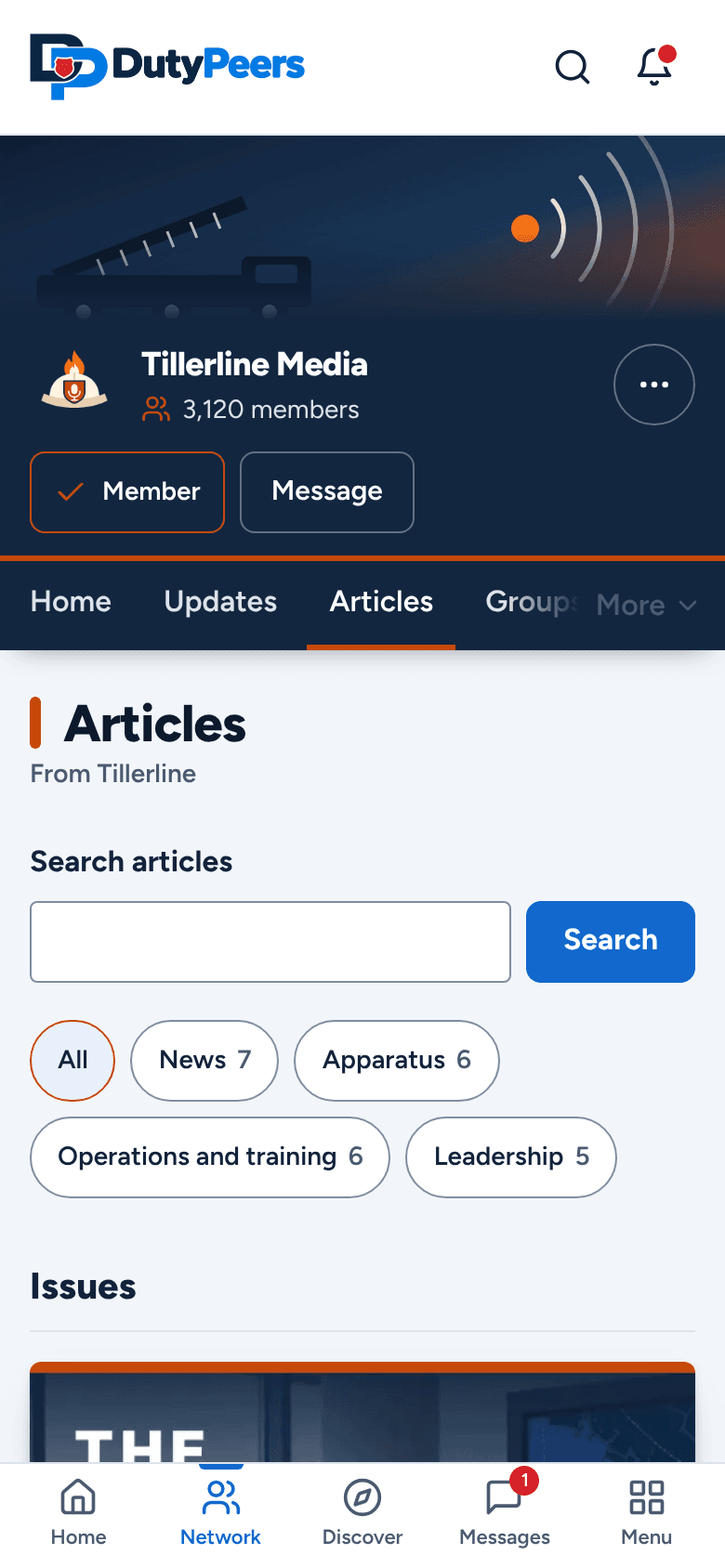
The shows and clips your audience already looks for, each linking back to you.
- Podcast episodes come in from your show's feed with their artwork, length and date. Each one credits and links to the original, and plays from your host's own audio where our policy allows.
- A YouTube or Vimeo channel is checked for new videos, and YouTube playlists come in too.
- Pin the videos you want first on your Videos tab.
- Show a video or a photo gallery in an Update you post yourself.
Webinars, conferences and your newsletter
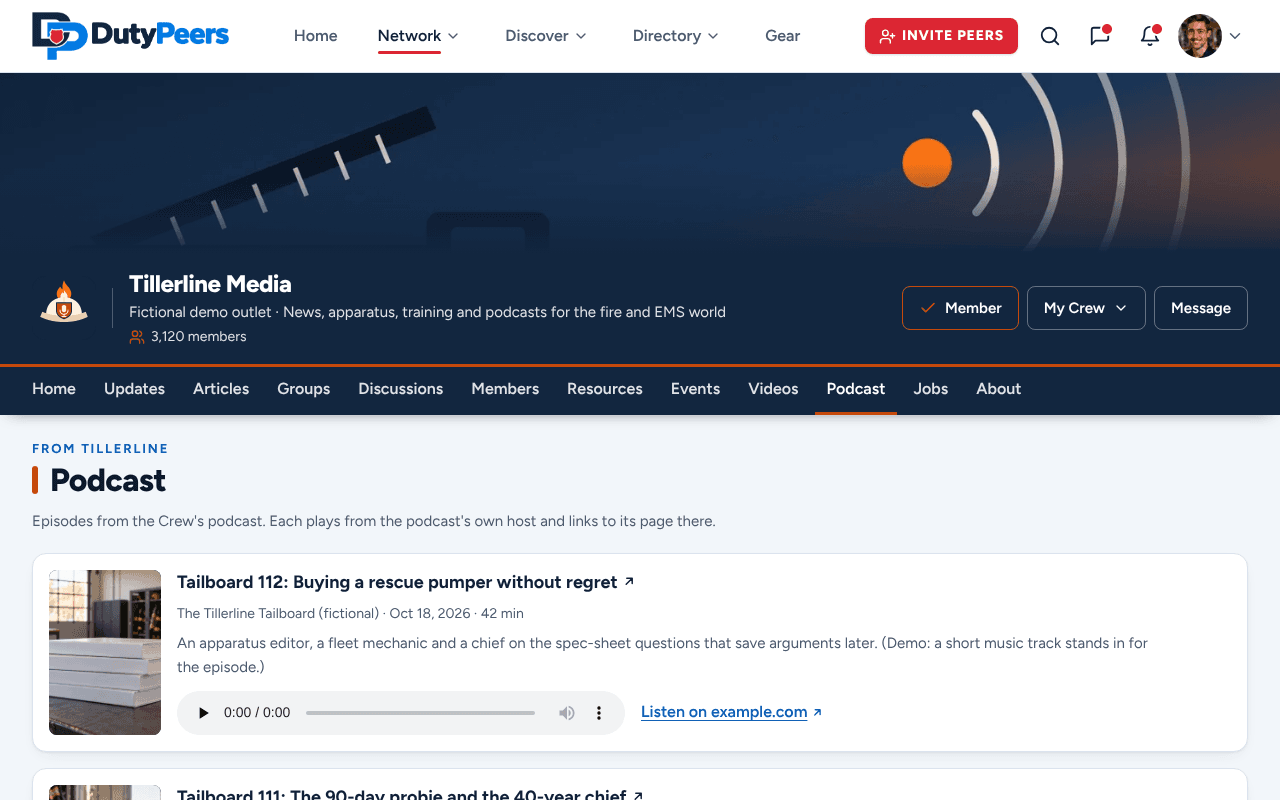
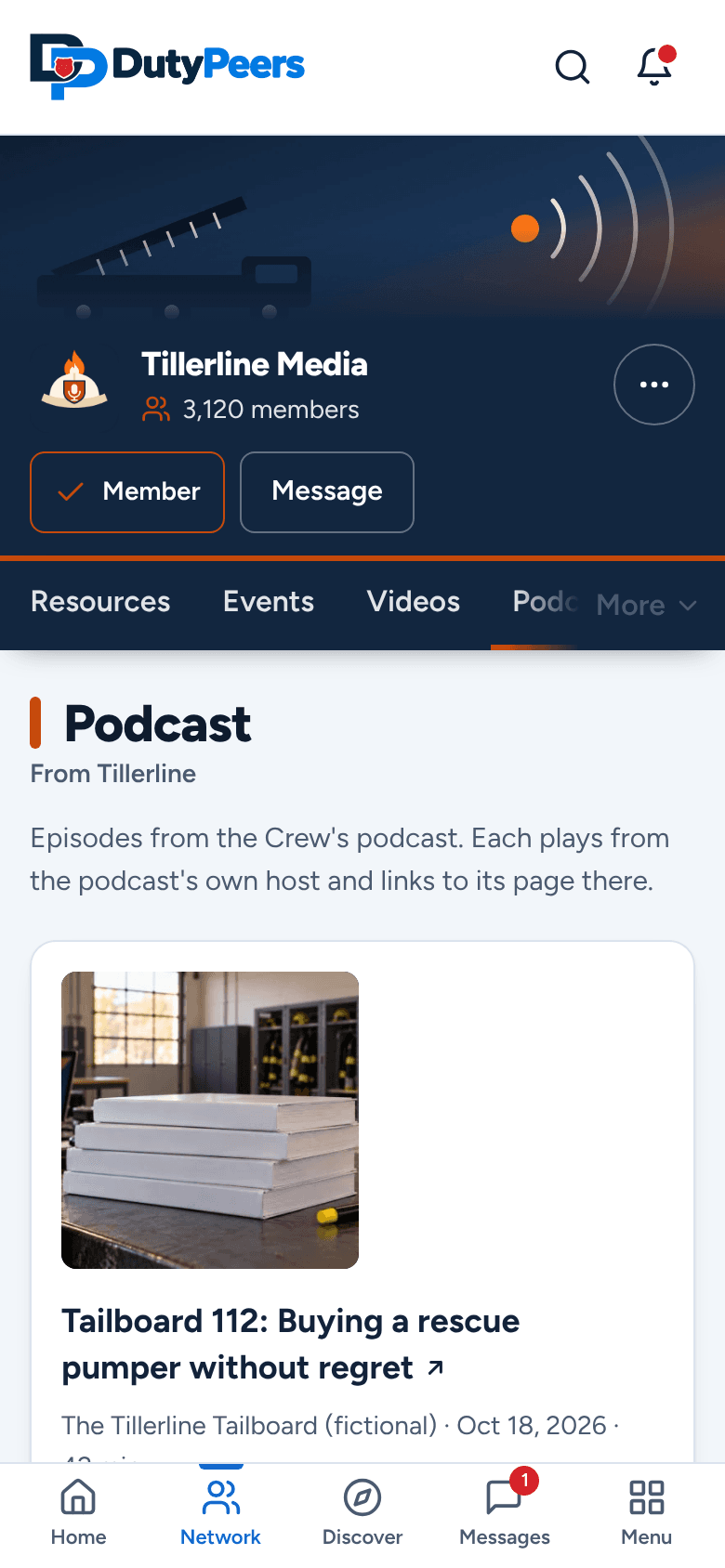
Your calendar in front of verified responders, and your own newsletter one click away.
- Events come from iCal, schema.org Event, The Events Calendar or an RSS feed with dates, and webinar pages from Zoom, GoTo, ON24 and Teams.
- Post your conference or expo as an event with its registration page, so a reader knows where to find you.
- A past event drops off by date, so your calendar stays current.
- Add your newsletter's sign-up page as an About button or a pinned resource. DutyPeers never signs anyone up for you.
- Members and followers choose their own digest of your Updates: off, daily or weekly. Off is the default.
What you get
Your stories
From a feed or any page of your site, each story linking back to you, with the category you choose.
Your podcast
Episodes from your podcast feed, each crediting and linking to the original.
Your videos
A YouTube or Vimeo channel, YouTube playlists, and videos you pin yourself.
Events and webinars
Your conference, expo and webinars, from your calendar and from Zoom, GoTo, ON24 and Teams pages.
Your newsletter
Link your sign-up page from an About button or a pinned resource. Members and followers can choose a digest of your Updates.
Discussions
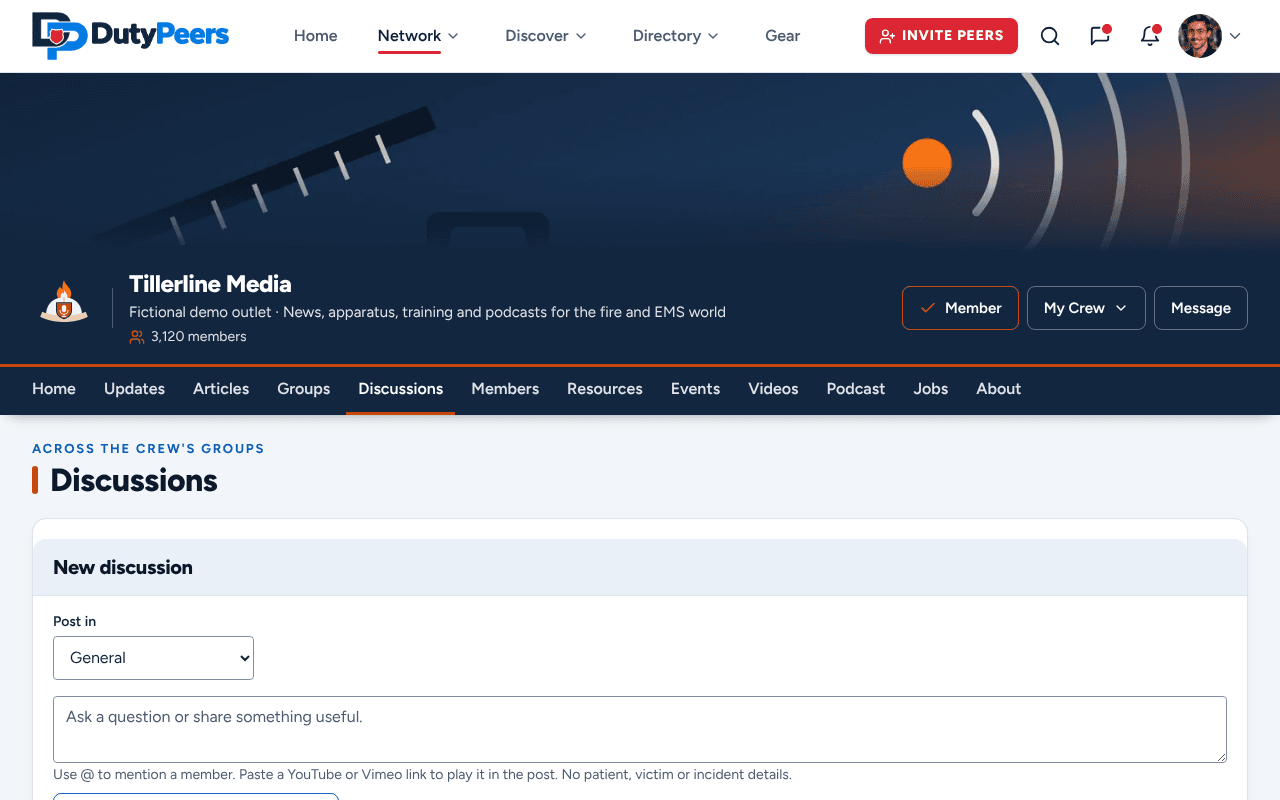
Readers talk in your groups, and your editors answer by name.
Readers who serve
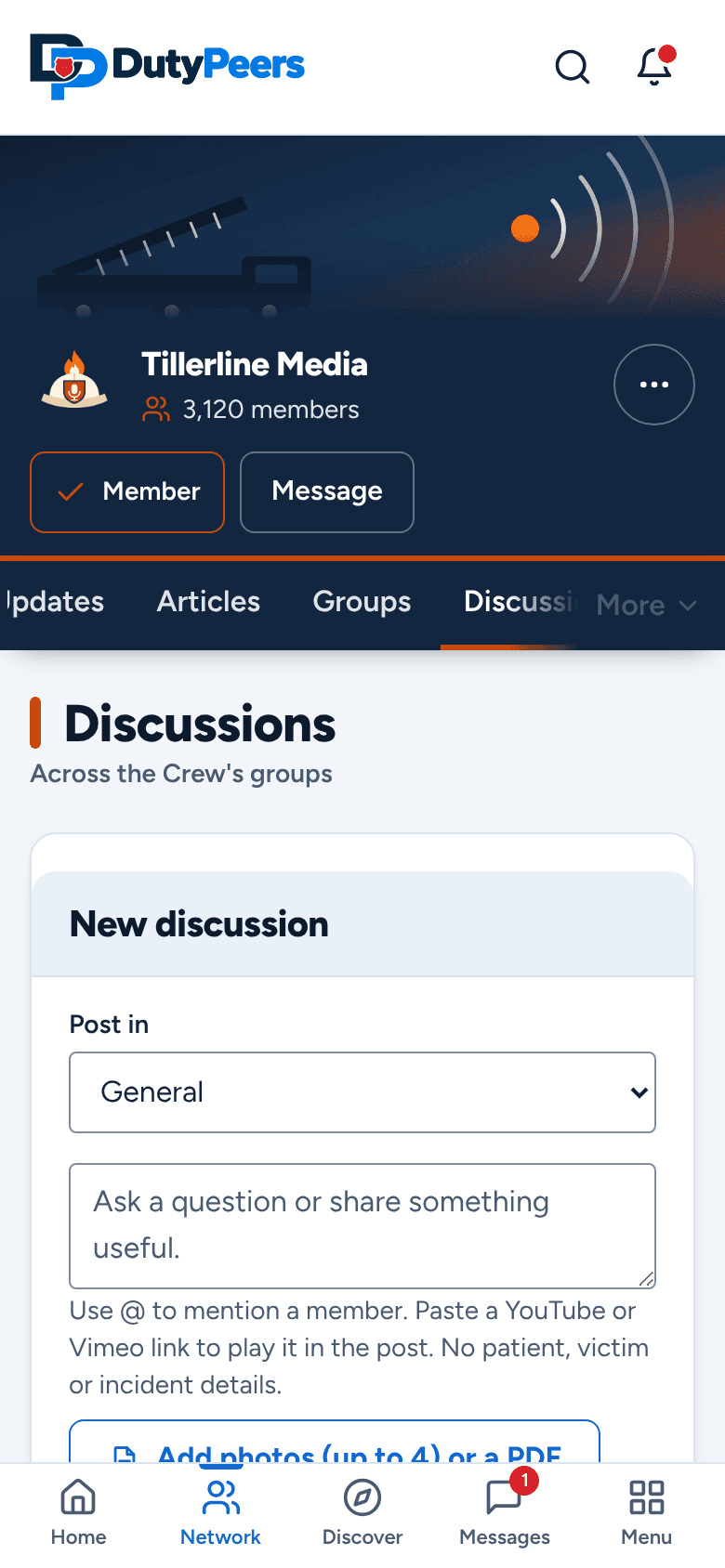
Members join with the account and verification they already have, and carry your badge.
Numbers
Weekly growth and activity for your Crew, with small counts hidden.
Media kit and documents
Your media kit, style guide and PDFs, linked as resources.
Readers talk back, with you in the room
The conversation about your work happens with you, not without you.
- Turn on Groups and Discussions, such as a group per section or per show, when you're ready. Your sources keep flowing either way.
- Your editors answer by name, with your Crew's badge beside what they write.
- Share a photo or a video in a discussion, and link a story from it.
- Sign-in, verification, profiles, moderation tools and accessibility come with it. You build and host nothing.
- You decide who joins your Crew, and joining yours never stops anyone joining another.
A readership of people who serve, and your numbers
Your Crew sits inside a network of verified public safety professionals, and you see how it grows.
- Readers join with the DutyPeers account and verification they already have, and carry your badge on their profile and on everything they write in your Crew.
- Your Crew is listed in Explore Crews, and the stories, events and resources you choose can reach DutyPeers' news, resources and events pages.
- Every channel from your Crew to a member is opt-in. Nothing is pre-checked, and a member's email address is never shared with you unless they choose to share it.
- A Numbers page for your admins shows twelve weeks of joins, leavers and followers, what your Crew posted, who is active now and your most active discussions.
- Small counts are hidden to protect privacy. There are no download or read counts.
How you get your Crew
A person on our team sets it up with you, then it is yours to run.
- Ask for your Crew and tell us who you are. We write back and set it up with you.
- You run it. Your admins set the rules, approve members, moderate and publish.
- Connect your feeds, podcast, channel and calendar, and press Test on each address to see what we can read.
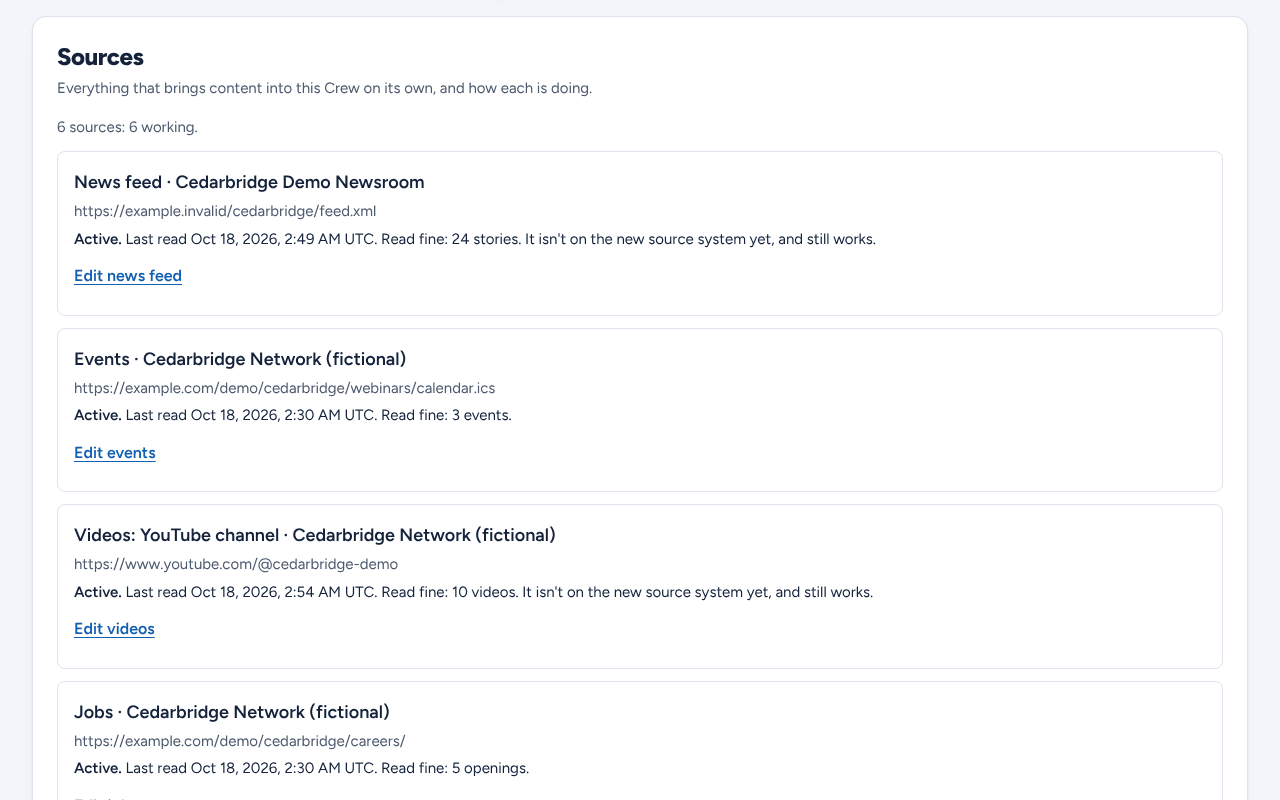
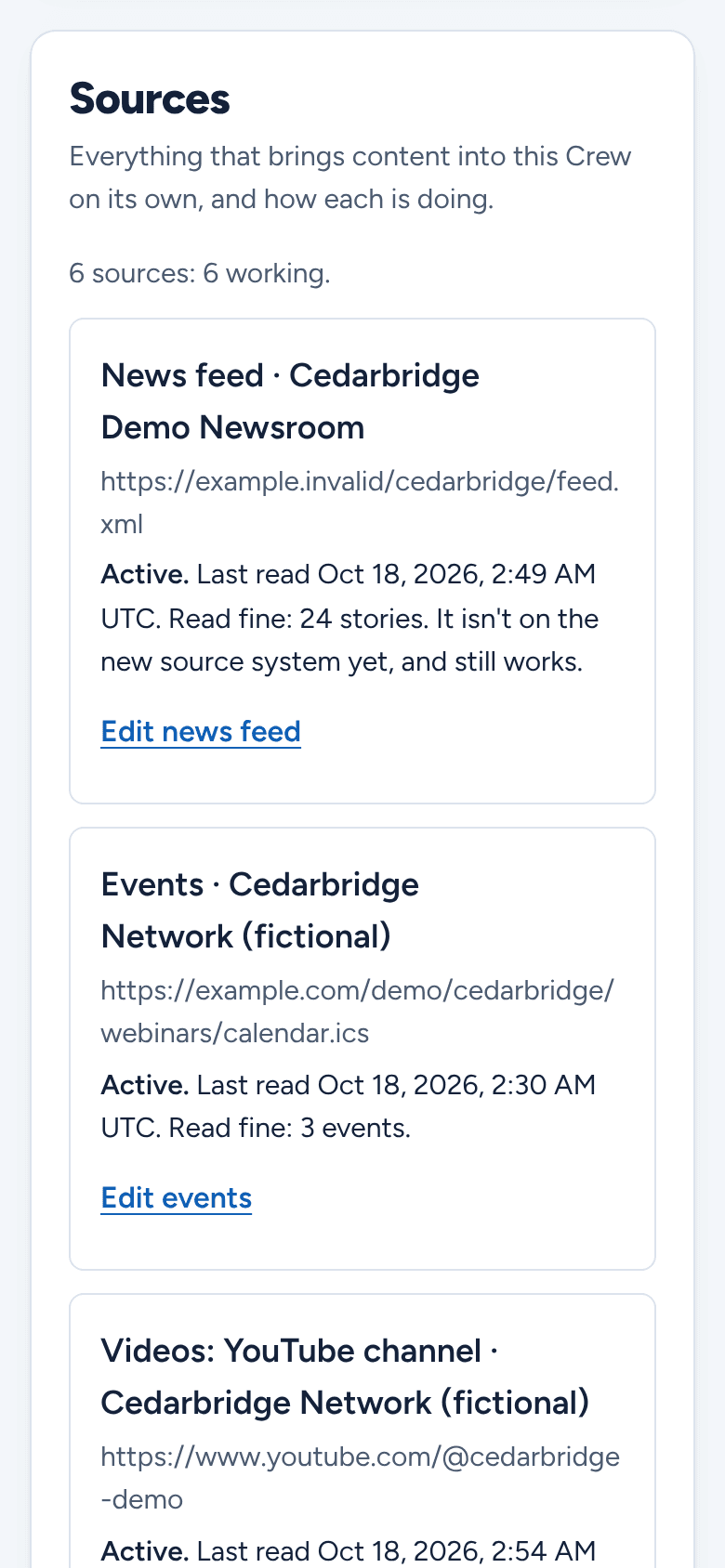
- The Sources overview lists every address, when it was last read and how it went.
- A broken site or a half-loaded page can't empty your Crew. If a read lists far fewer items than the last good one, the earlier items stay.
How it works
Ask for your Crew
Tell us who you are. A person on our team writes back and sets it up with you.
Connect your sources
Paste your feed, podcast, channel and calendar addresses. Press Test, then save.
Let it run, then talk with readers
Your Crew stays up to date. Turn on the Feed, Discussions and Groups when you're ready.
Questions
Do we have to post everything twice?
No. Your feeds, podcast, channel and calendar bring your work in as short excerpts that link back to your site.
What is copied from our site?
Short excerpts: a title, a summary of up to 400 characters, a resized copy of the picture, a date and a link to the original. We never keep an article or an audio file.
Can readers comment under a story?
Not under a story itself. Readers talk in your Crew's groups and discussions, where your editors answer by name, and a discussion can link to any story.
Do we get our readers' email addresses?
No, not unless a reader chooses to share theirs. Your admins see a name and a headline, and every channel from your Crew to a reader is off until the reader turns it on.
Do we run our newsletter here?
No. You keep your own newsletter. Your Crew links its sign-up page, and members and followers can choose a digest of your Updates.
Who else it's for
- PeopleFind your people, share what you know and keep control of your privacy.See the page
- BusinessesA Business Crew that runs itself, from your store, videos, events, training, jobs and podcast.See the page
- AgenciesAn agency page with its people, news, videos and events, and a Crew for your department.See the page
- OrganizationsAn Organization Crew that runs itself, with groups, events, training and documents for your members.See the page
There is a place for you here.
Career, volunteer, paid-on-call or reserve. Public safety only, no ads, and private by default.
Opening in waves with an invite link or code.