


How to add your agency's capabilities
Capabilities introduce your agency's specialized teams, programs and resources (a swift-water team, a hazmat team, a mobile command post, a backup 911 center) to members at other agencies, so peers can find the right person for training, exercises, program development and planning conversations.
Who can add capabilities, and who sees them
Who adds them: your agency's confirmed page admins. Being named as a listing's contact doesn't make anyone an admin.
Who sees them: members whose current agency affiliation is verified, and DutyPeers staff. Never the public, never search engines.
What a listing is: an agency-approved introduction. It doesn't establish availability, authorize deployment, or replace official resource inventories and mutual-aid procedures.
Becoming a page admin
Only your agency's confirmed page admins can add or change its listings. If nobody manages your agency's page yet, or you need admin rights too, ask for access at Post for an agency and choose Page admin.
You confirm the request with an email address on your agency's own domain, then a person on the DutyPeers team reviews and approves it. Every grant is recorded and can be taken back. More in the department admins' guide.
Step by step
1. Open Manage agency
On your agency's page, choose Edit page. Under For verified peers, choose Add your agency's first capability (or Manage capabilities once you have some).
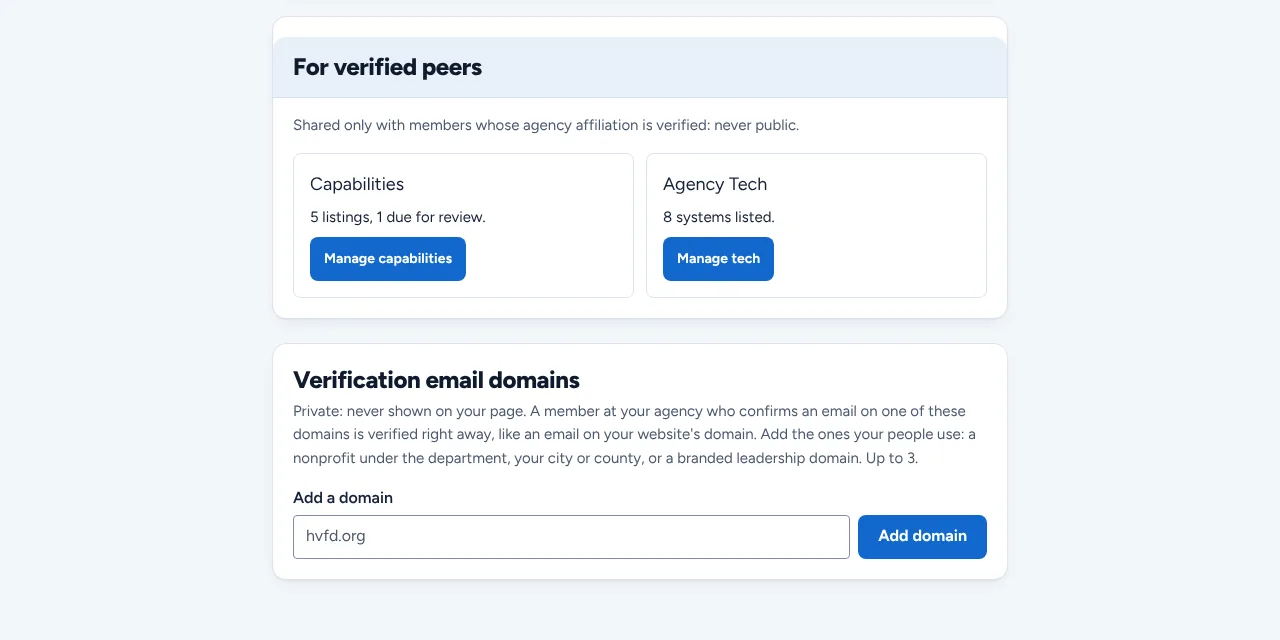
2. Choose the kind of capability
Give it a plain name and pick the category and subtype (12 categories, each with an Other that needs a plain name). DutyPeers suggests discipline tags for the subtype: tick only the ones that apply to your agency's actual capability.
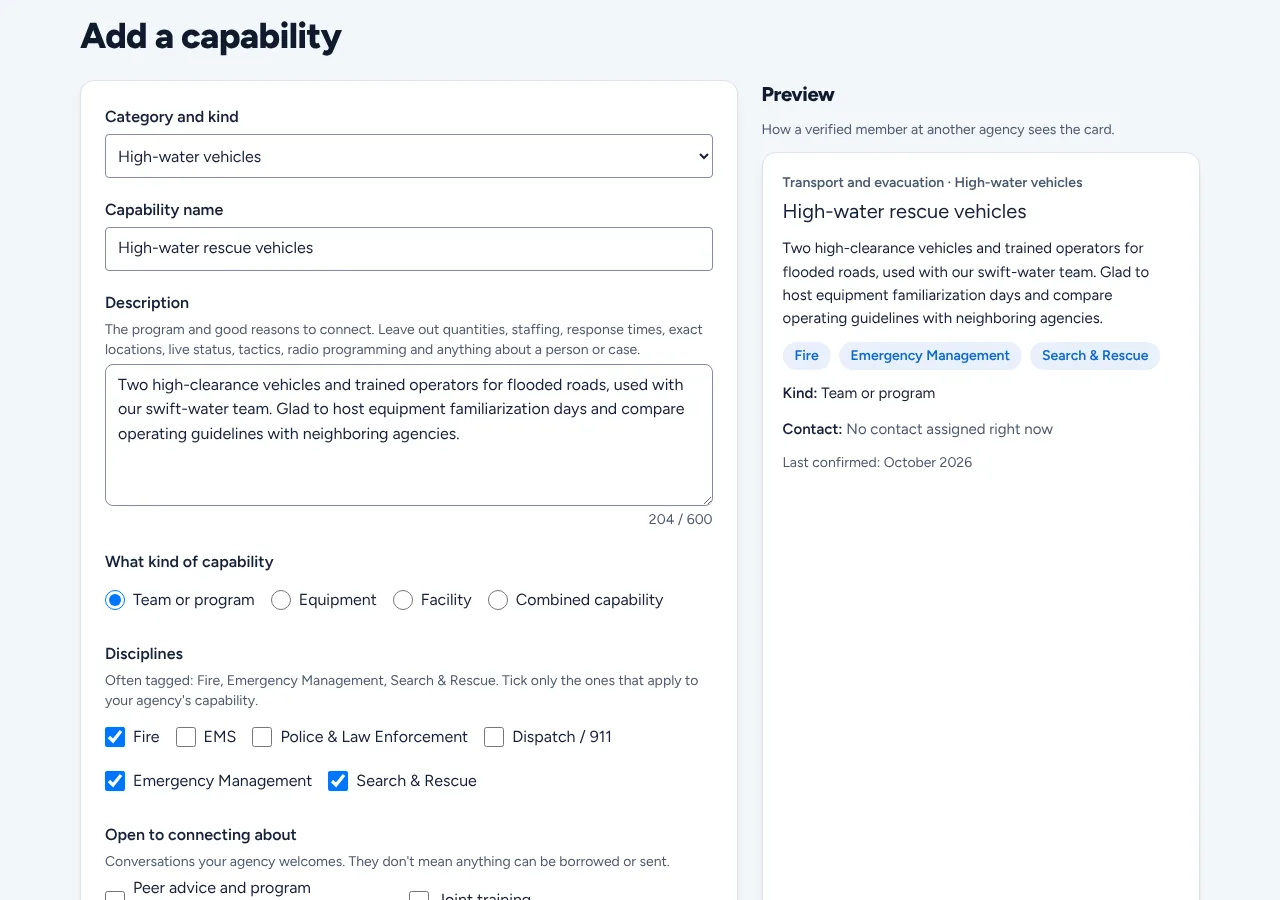
3. Describe it, pick a contact, check the preview
Write a short description of the program and good reasons to connect, choose what you're open to connecting about (peer advice, joint training, exercises, equipment familiarization, mutual-aid planning, regional working groups) and a contact: a member whose affiliation with your agency is verified, or a role such as "Rescue coordinator". The preview shows the card exactly as verified members will see it. Then Save draft or Publish.
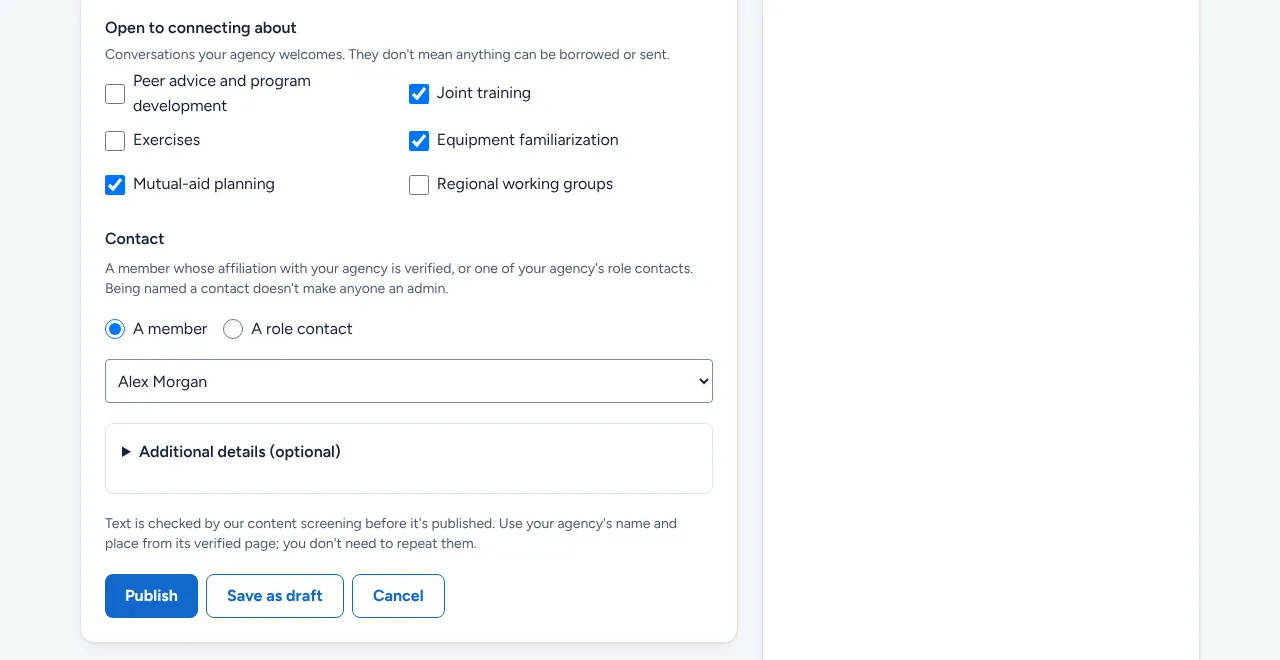
4. Keep it current
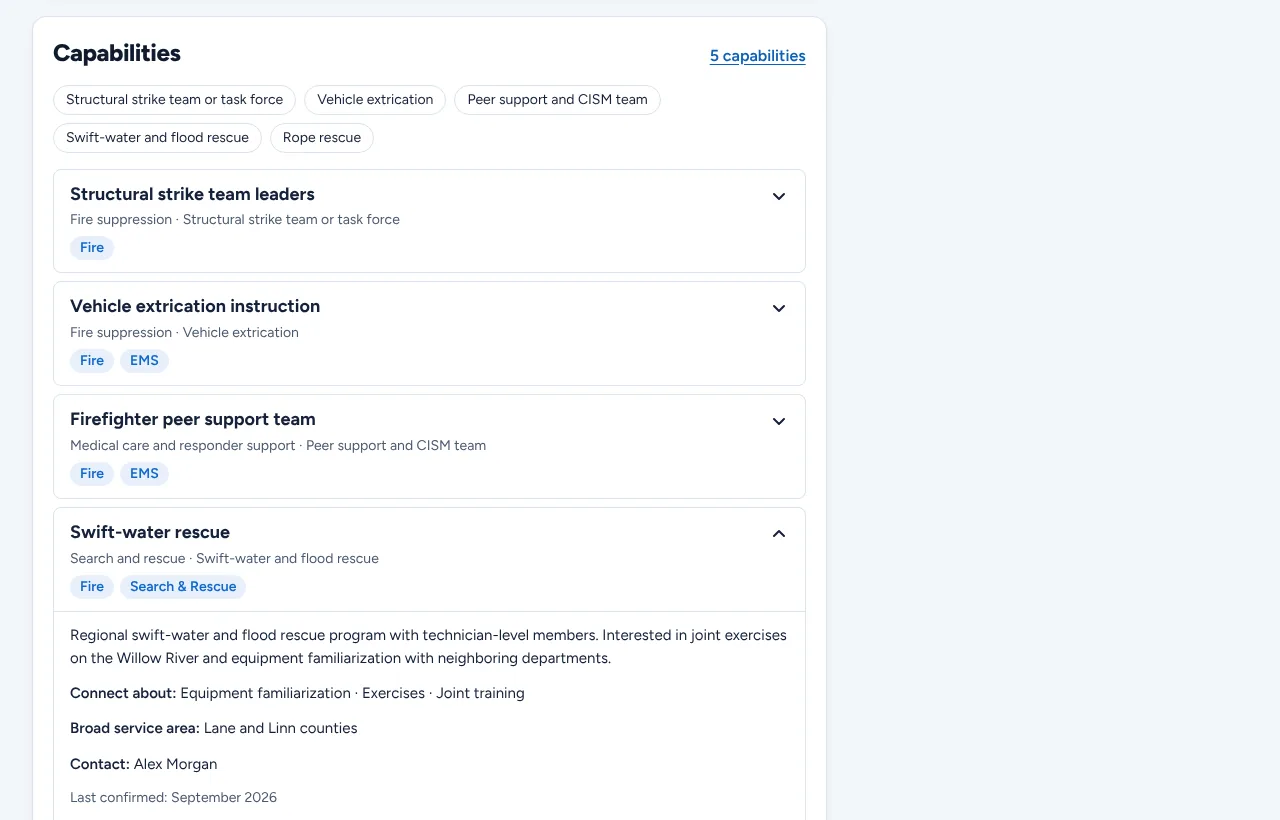
Every listing shows when it was last confirmed. Editing doesn't change that date: use Confirm current. Your page admins get a reminder after six months (or the interval you choose); after twelve months without confirmation a listing leaves capability search and shows Confirmation overdue on your page.
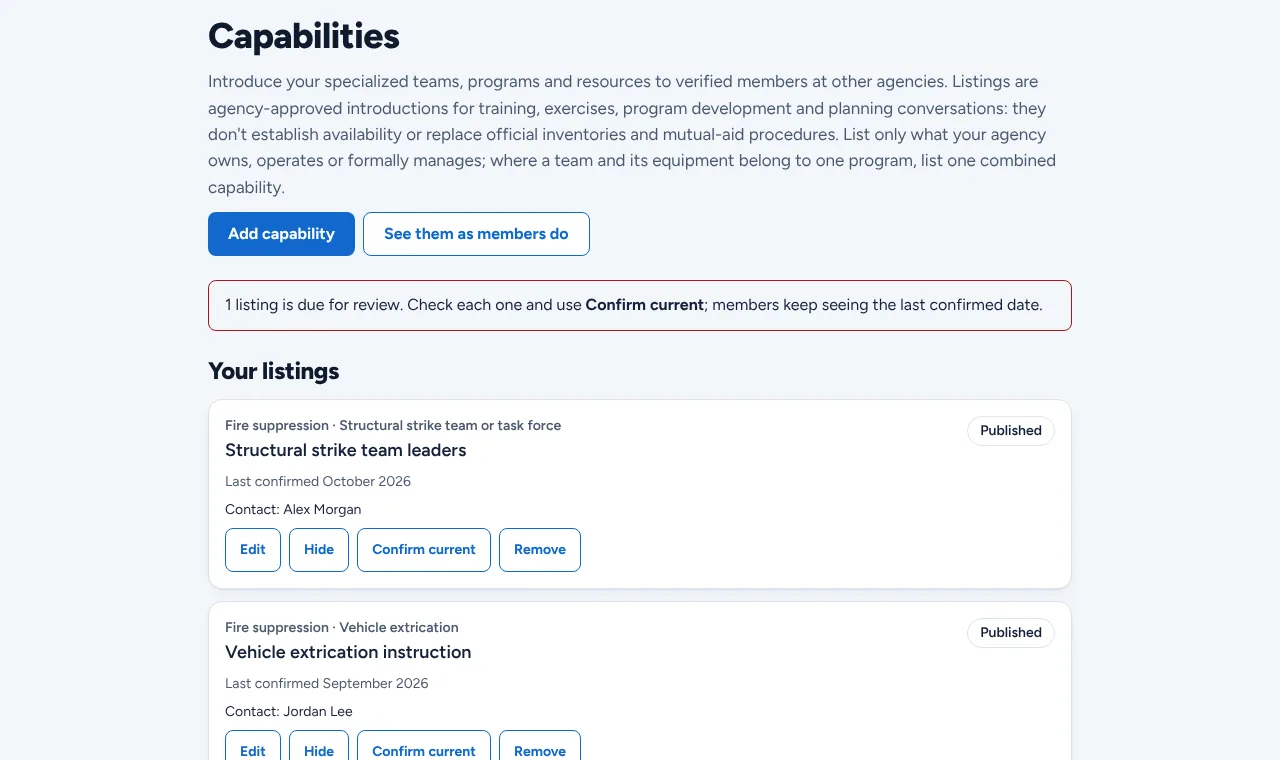
5. How peers find it
Your listings appear in the Capabilities section of your agency's page, as compact rows that open for the details and the contact, and in Capabilities search, which shows listings near the member and recently confirmed ones first.
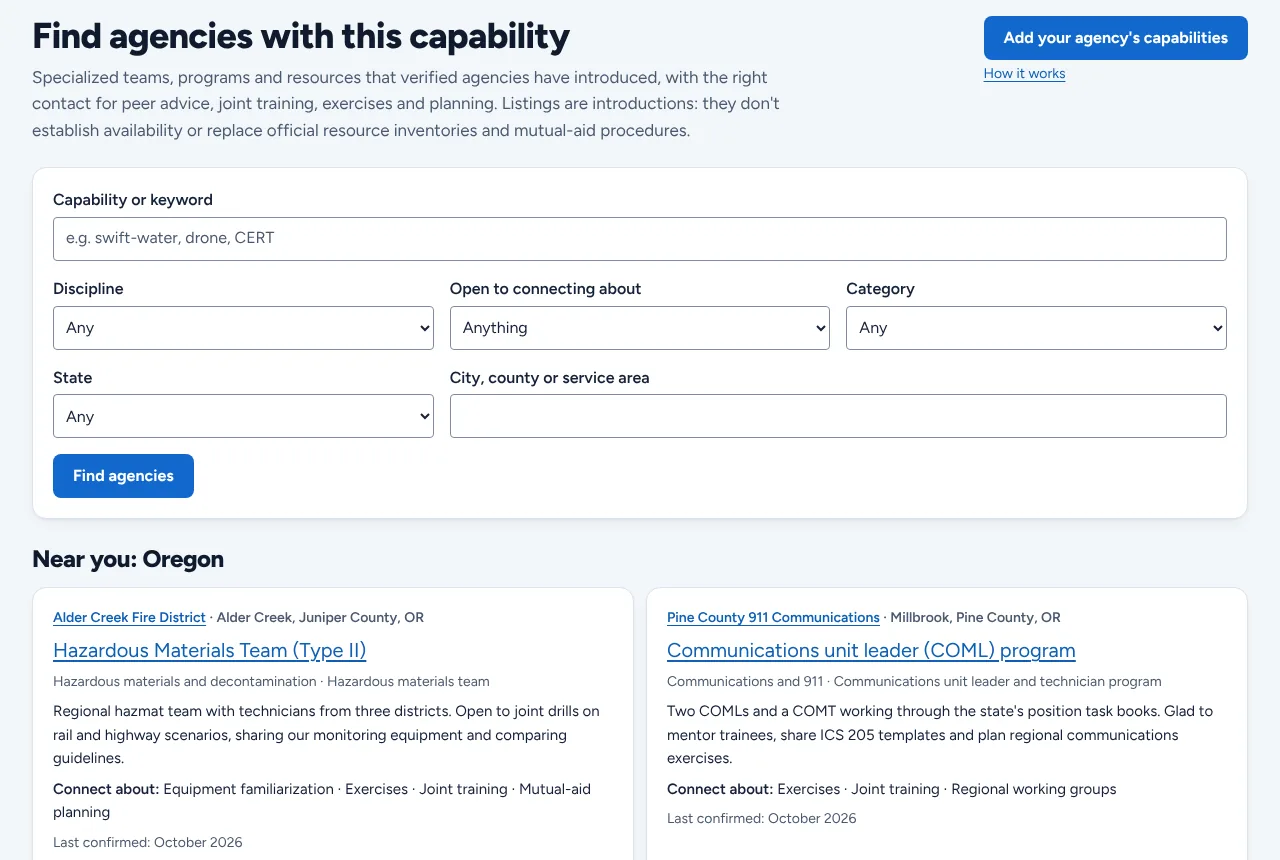
6. Search, on any screen
Members filter by keyword, discipline, connection interest, category, state and place. Results are ordered by agency, never by anything like readiness.
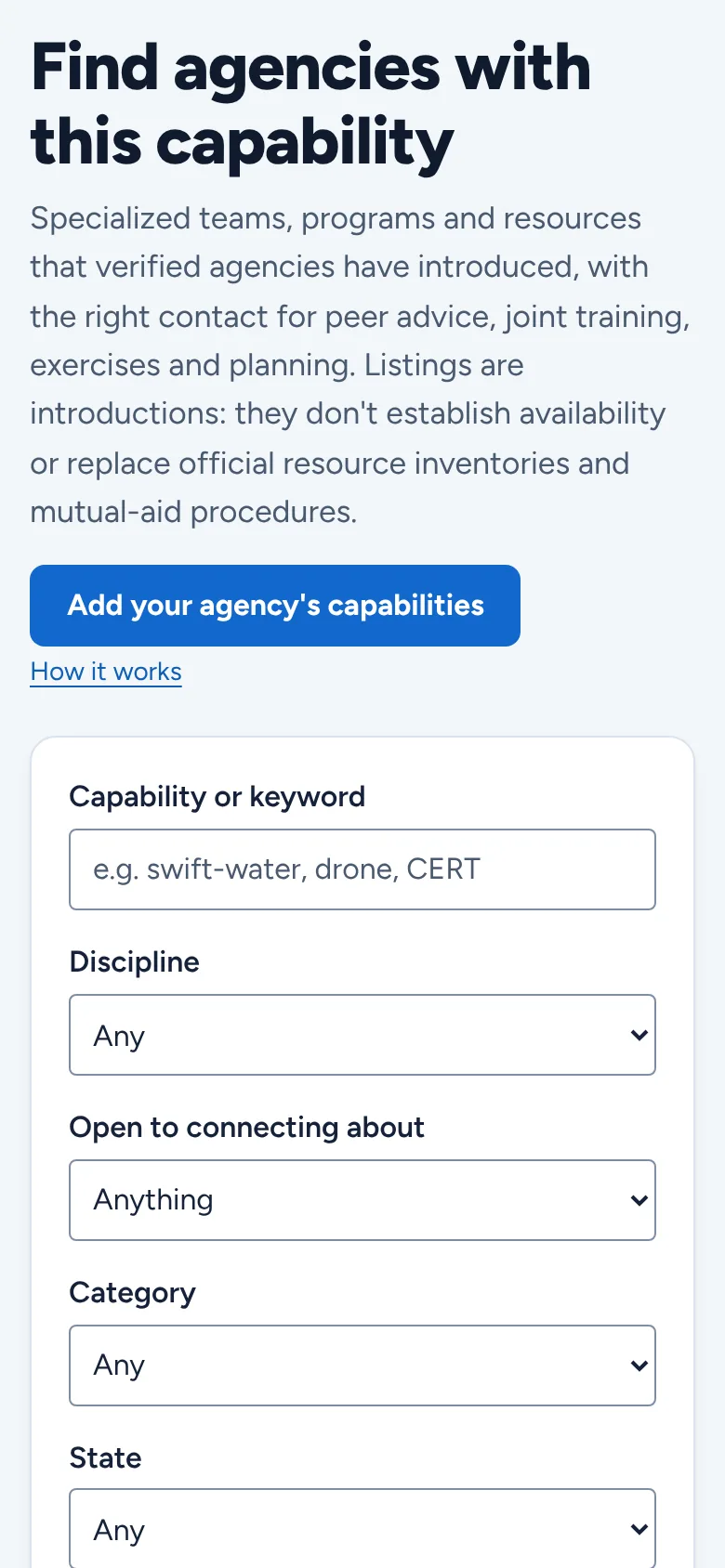
7. On a phone
Everything works the same at phone width: filters stack, results follow.
Privacy
Listings, tags, counts and search results are shown only to members with a current verified agency affiliation and to DutyPeers staff. Anyone else sees that verified affiliation is required, and nothing about your listings, not even whether there are any.
The pages are never indexed by search engines and never in the sitemap.
A member named as a contact appears only to viewers their own privacy settings allow (their name as they chose to show it). A role contact's email and phone show only if you turn on Display role-contact details.
Your page admins can turn the section off, or keep listings out of search while they stay on your page.
Tips
One program, one listing. A team and its equipment usually belong in one combined capability rather than several near-identical ones.
Name a role, not just a person. A role contact survives staff changes; set a default contact in the settings.
Leave out what doesn't belong: quantities, staffing and readiness, response times, exact locations, live status, weapons or tactics, radio programming, credentials, and anything about a person or case.
Confirm on a schedule. A recent "Last confirmed" date is what makes a listing worth a call.