


How to list your agency's technology
Agency Tech lets your agency share the systems it runs (CAD, records, ePCR and billing, 911 call handling, radio, alerting, video, ALPR, drones, scheduling, training, emergency management and more), so verified peers at neighboring agencies can compare notes before they buy.
Who can list technology, and who sees it
Who lists it: your agency's confirmed page admins.
Who sees which agencies run what: members whose current agency affiliation is verified, and DutyPeers staff. Never the public, never search engines, never vendors.
The vendor directory: any signed-in member can browse the vendors and their products. Which agencies use a vendor, and how many, is shown only to verified agency members.
Becoming a page admin
Only your agency's confirmed page admins can add or change its listings. If nobody manages your agency's page yet, or you need admin rights too, ask for access at Post for an agency and choose Page admin.
You confirm the request with an email address on your agency's own domain, then a person on the DutyPeers team reviews and approves it. Every grant is recorded and can be taken back. More in the department admins' guide.
Step by step
1. Open Manage agency
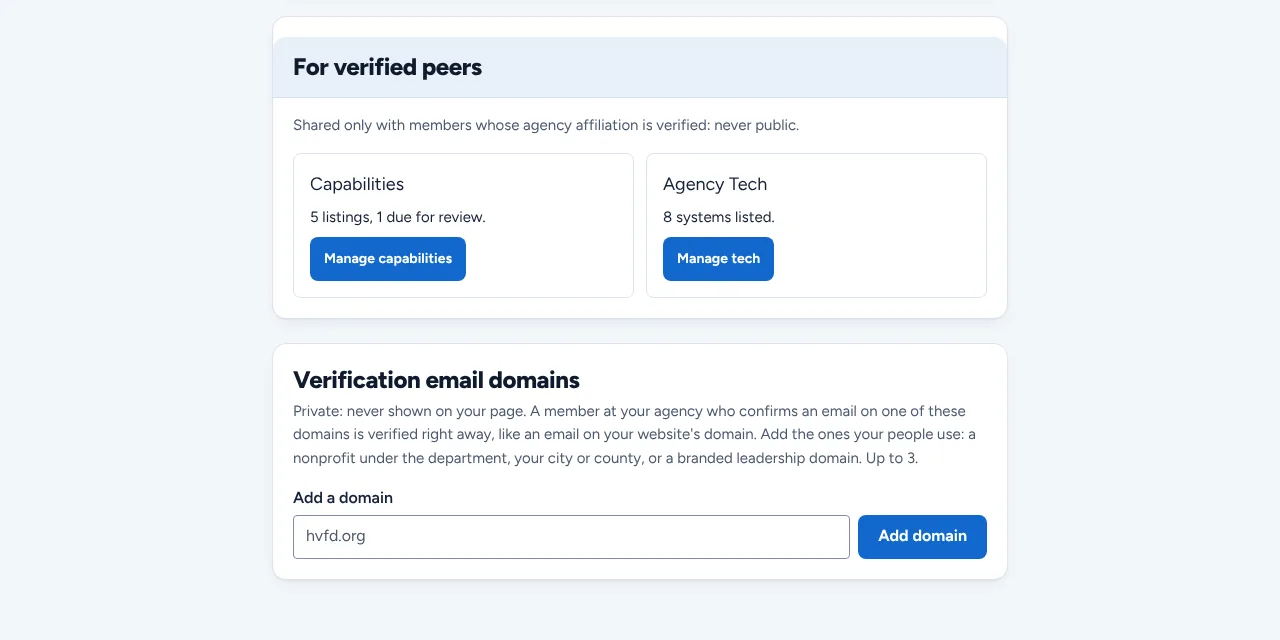
On your agency's page, choose Edit page. Under For verified peers, choose Add your agency's tech (or Manage tech once you have entries).
2. Pick the category and the vendor
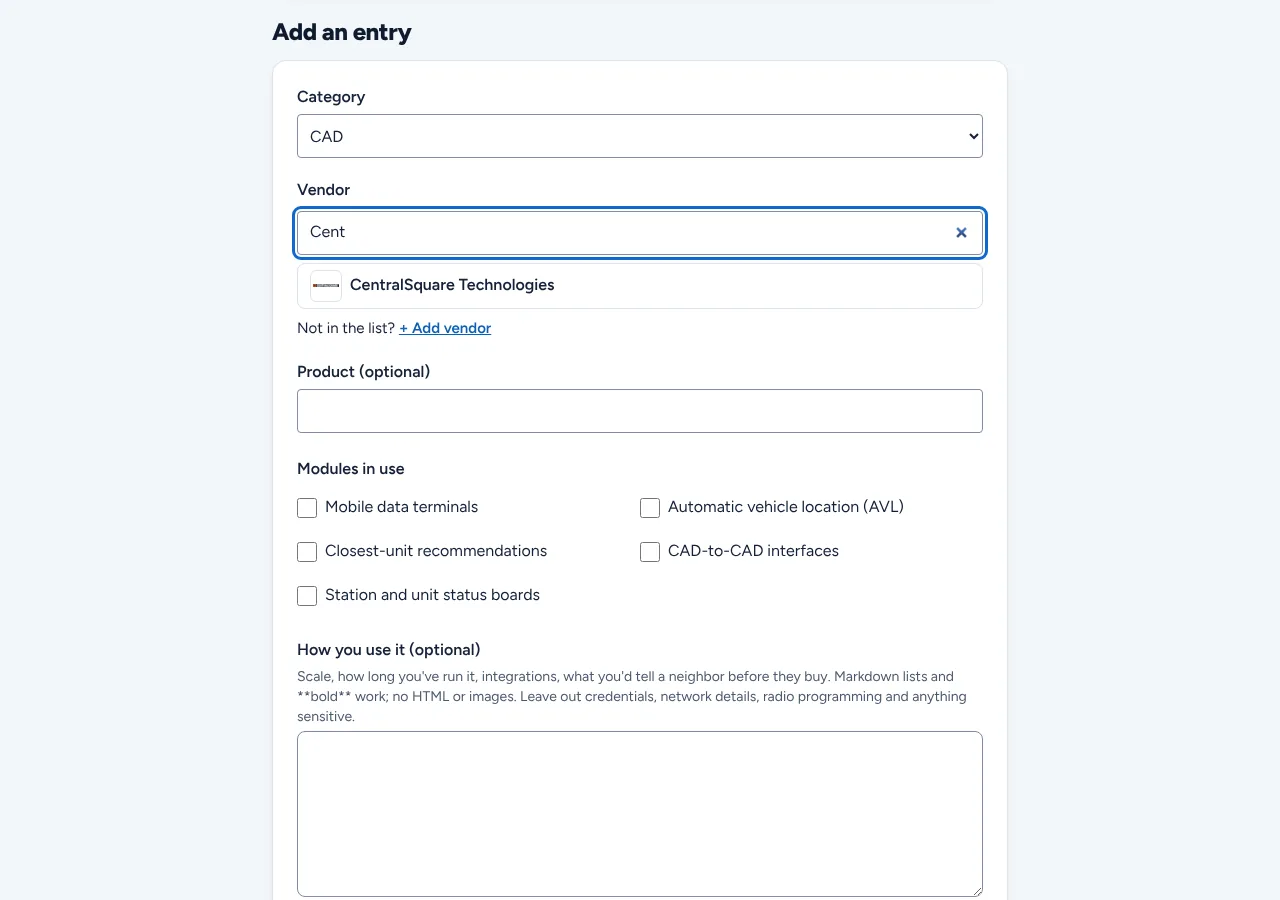
Choose the category, then search for the vendor. If it isn't in the index yet, use + Add vendor: it shows on your entry right away and our team reviews it for the shared index.
3. Add the product, modules and how you use it
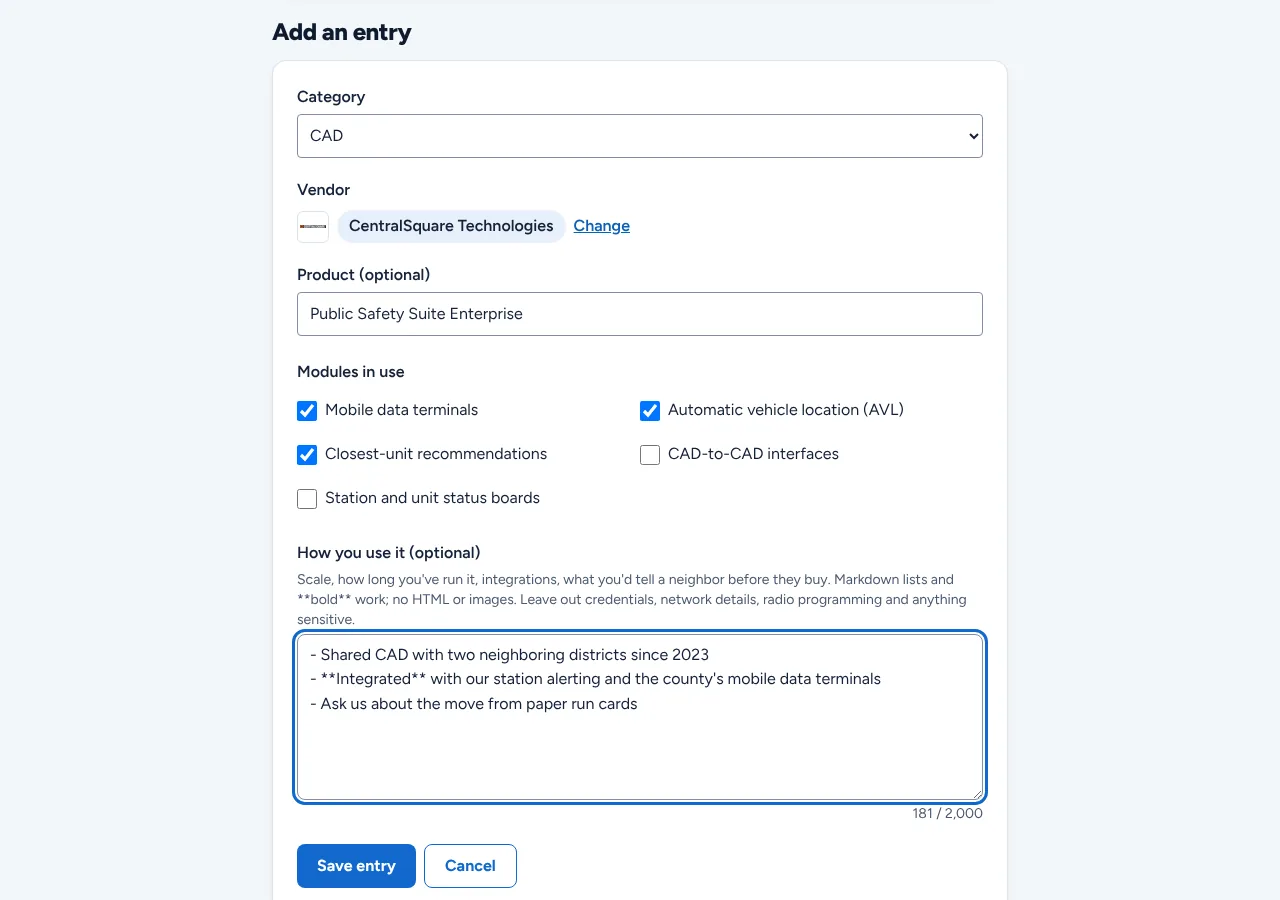
Add the product if you like, tick the modules you run, and write a few lines under How you use it: scale, integrations, lessons learned. Markdown lists and bold work. Then Save.
4. Or start from a vendor's company page
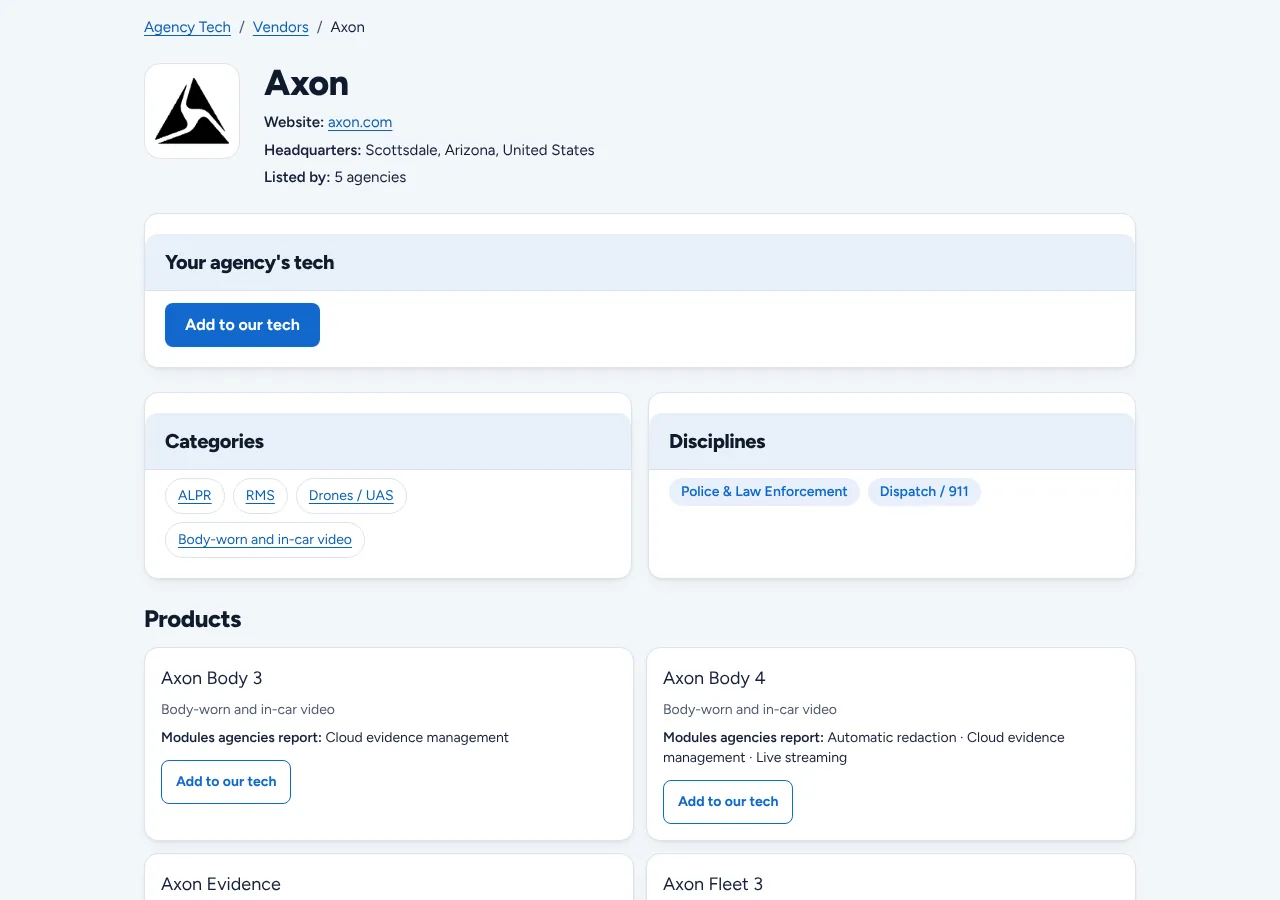
Every vendor in the vendor directory has a company page with an Agency Tech section. As a page admin you'll see Add to our tech there (and on each product), which opens your form with the vendor filled in, or Already listed — edit when your agency lists it.
5. How peers find it
Your systems appear in the Agency Tech section of your agency's page, grouped by category with each vendor's logo, and in Agency Tech search, which opens on the most-listed vendors in each category.
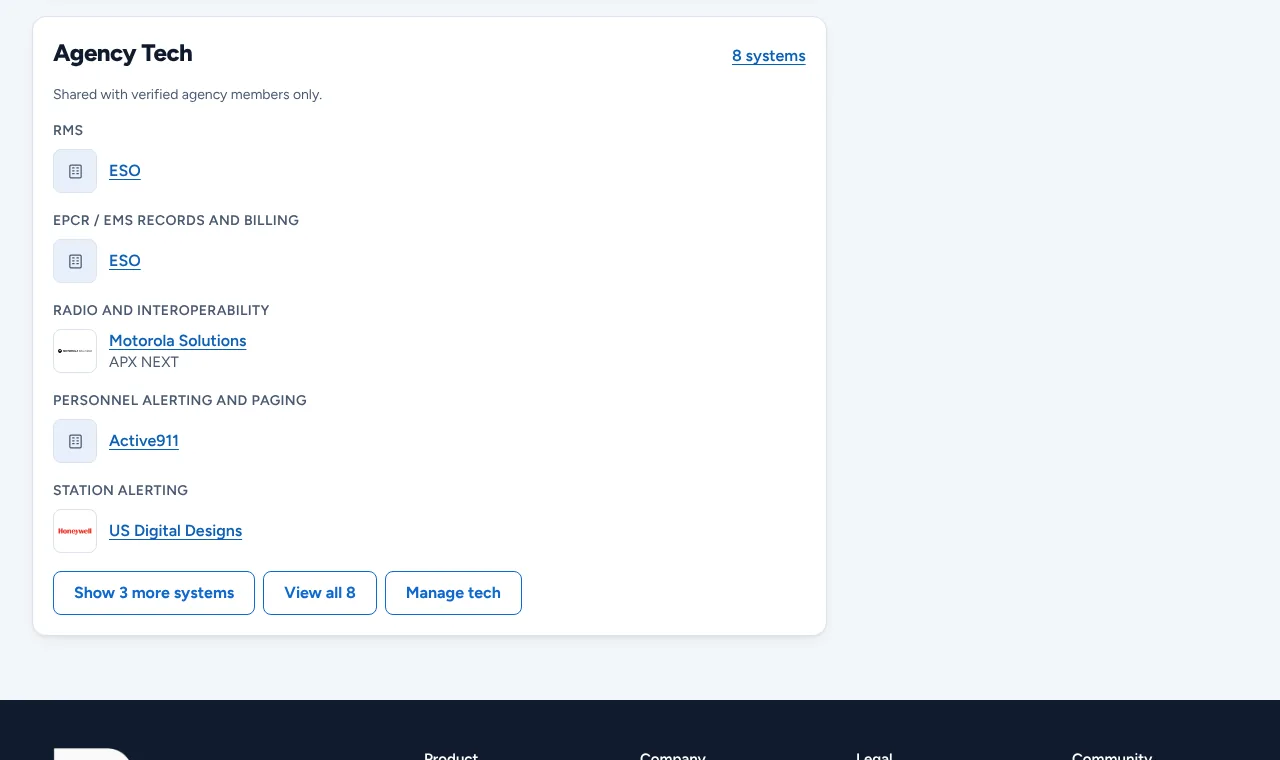
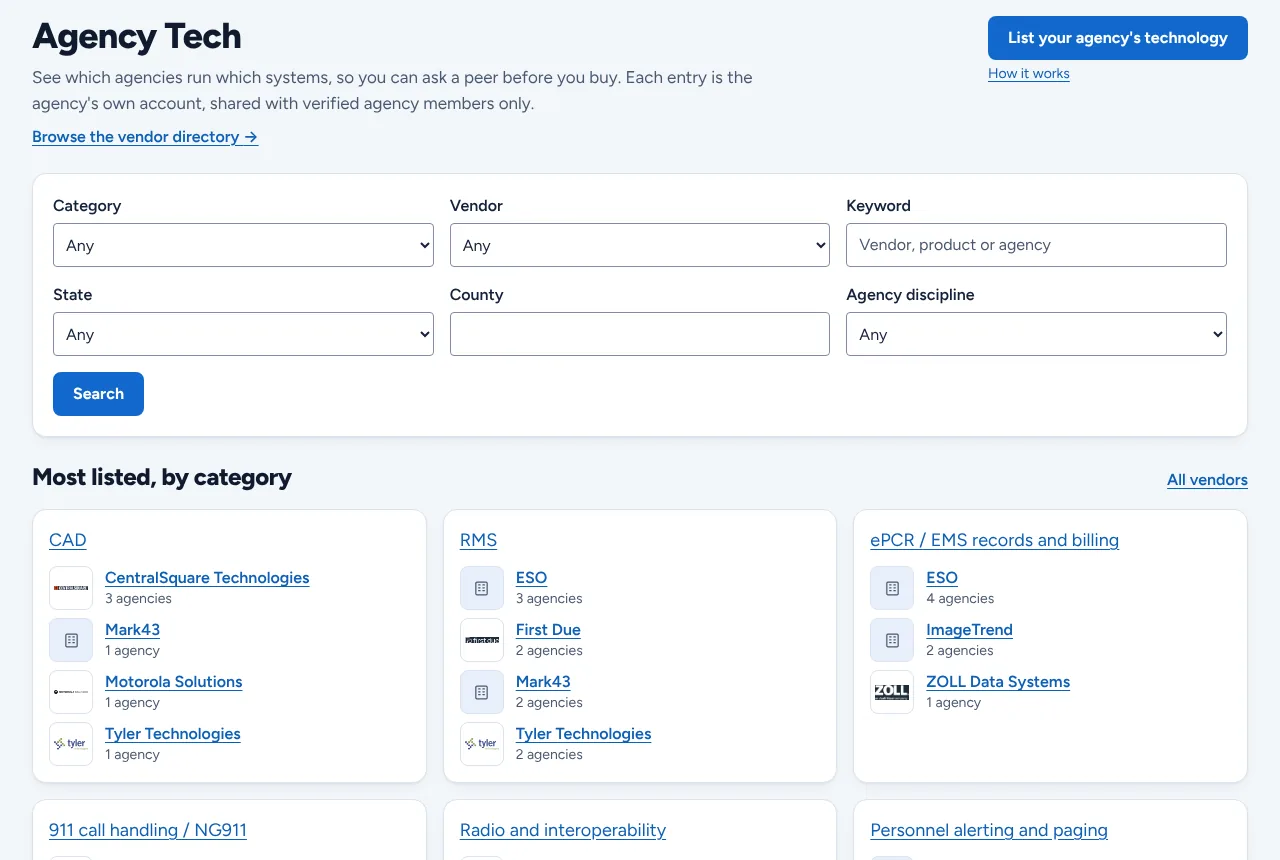
6. Search by category, vendor or place
Members filter by category, vendor, state, county, discipline and keyword, and open any vendor to see the agencies that list it, by state.
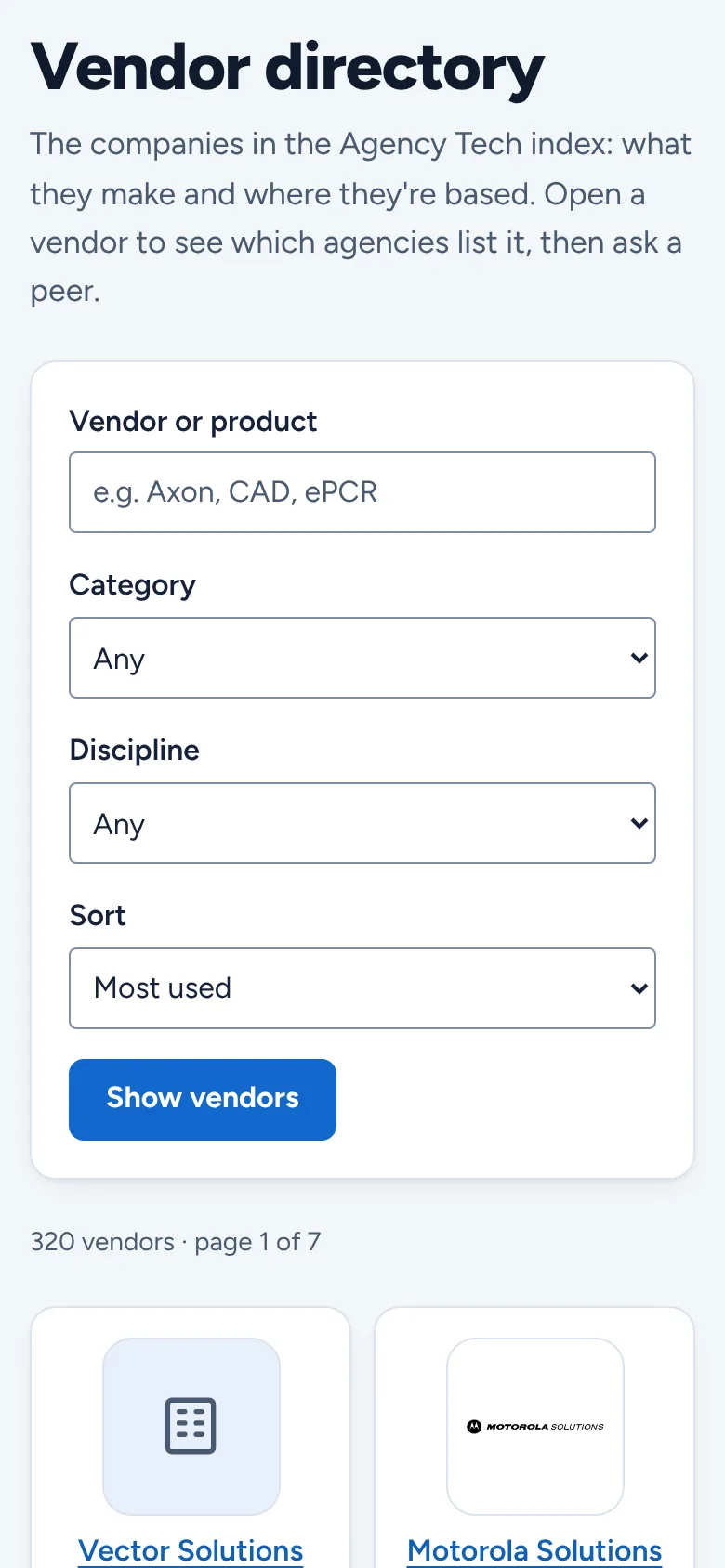
7. On a phone
The vendor directory and every list work the same at phone width.
Privacy
Which agencies run which systems is shown only to members with a current verified agency affiliation and to DutyPeers staff. Vendors don't get a list of their customers from DutyPeers.
Agency Tech pages are never indexed by search engines and never in the sitemap.
Your notes are your agency's own words, checked by our content screening before they're saved. Leave out passwords, network details, contract prices and anything about a person.
Your page admins can turn the section off, or keep entries out of search while they stay on your page.
Tips
One entry per system. A vendor that covers two categories (video and records, say) gets one entry in each.
Say how it fits. "Integrated with our CAD for unit status" helps a peer more than a feature list.
Tick modules honestly. List the modules you actually run, not the ones you bought.
Keep it current. Remove a system when you replace it, so peers ask the right agency.